
Gen 2 questionnaires can be played on Power Pages. Compared to legacy integration, the second-generation player operates as a lightweight, native component with minimal background processes and a simplified data model. To get you started faster, we’ve included a solution that lets you deploy a working example almost instantly.
Power Pages solution
We have prepared a sample solution that you can add to your organization. Use it to get started with questionnaires on Power Pages.
-
Install Resco Suite 19.2 or later.
-
Start the Resco Forms app.
-
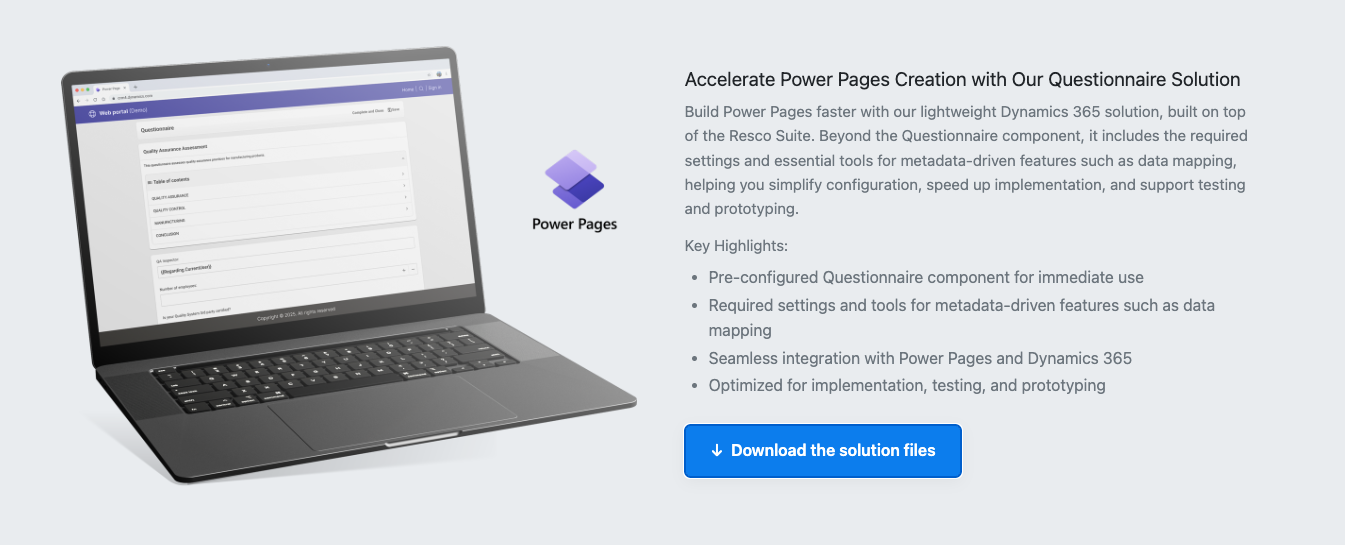
On the Get Started page, scroll down to the section about Power Pages and download the solution file.
-
Go to make.powerapps.com and import the solution. Wait for installation, then publish all customizations.
-
Go to make.powerpages.microsoft.com and make sure you are in the same environment.
-
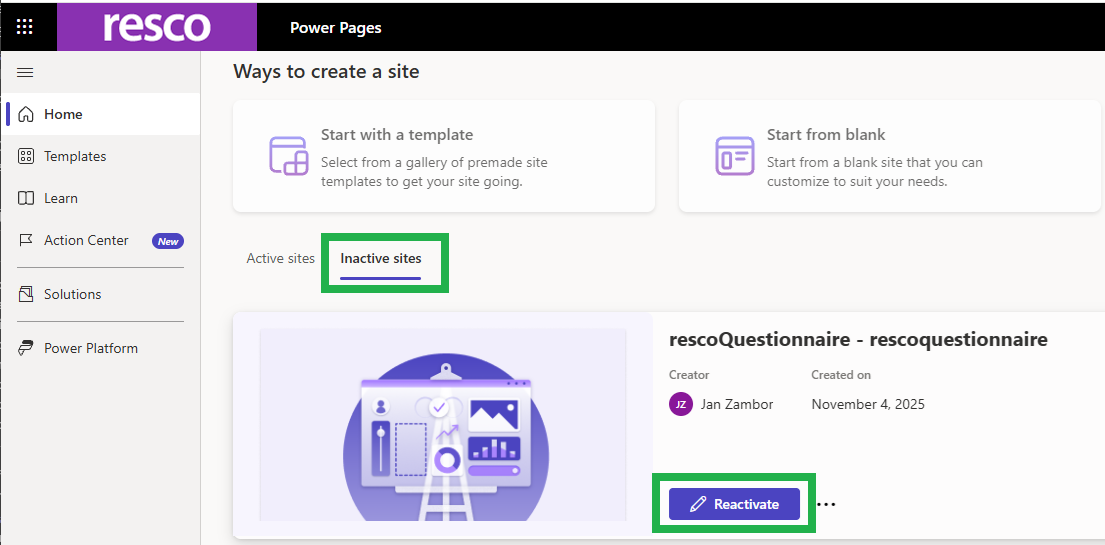
Go to the Inactive sites tab and Reactivate the rescoQuestionnaire site.
-
Find the demo among your active sites. It contains the questionnaire player component on the home page and has the required tables and Web API permissions set.
To display an actual questionnaire:
-
Open the source code in Visual Studio Code.
-
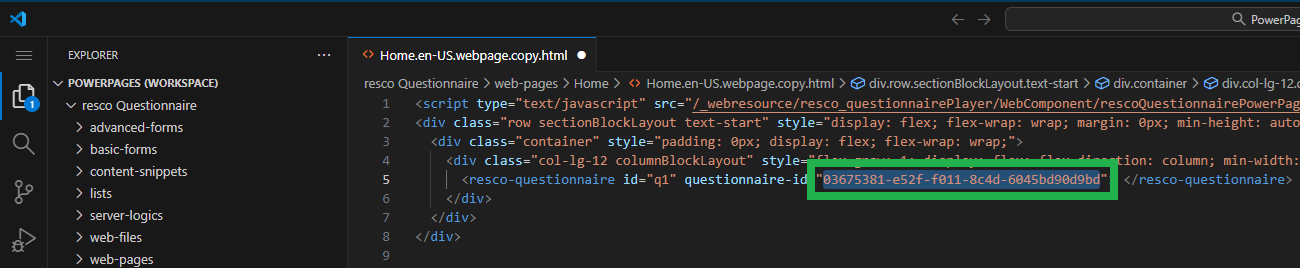
Find <resco-questionnaire> component in the Home page.
-
Instead of the placeholder, enter the ID of a questionnaire/answer that exists in your environment.
-
Save, Sync, and Preview. Sometimes, it might be necessary to fully reload the page to bypass the browser cache.
Warning
The demo page uses benevolent table permissions and content security policy to simplify testing. For production use, review and adjust the settings.
Power Pages advanced
The previous section explains how to quickly import and deploy a sample Power Page with questionnaires. If you want to build a Power Page from scratch, here are the details. We cover table permissions, web API permissions, and the procedure for adding questionnaires to a page.
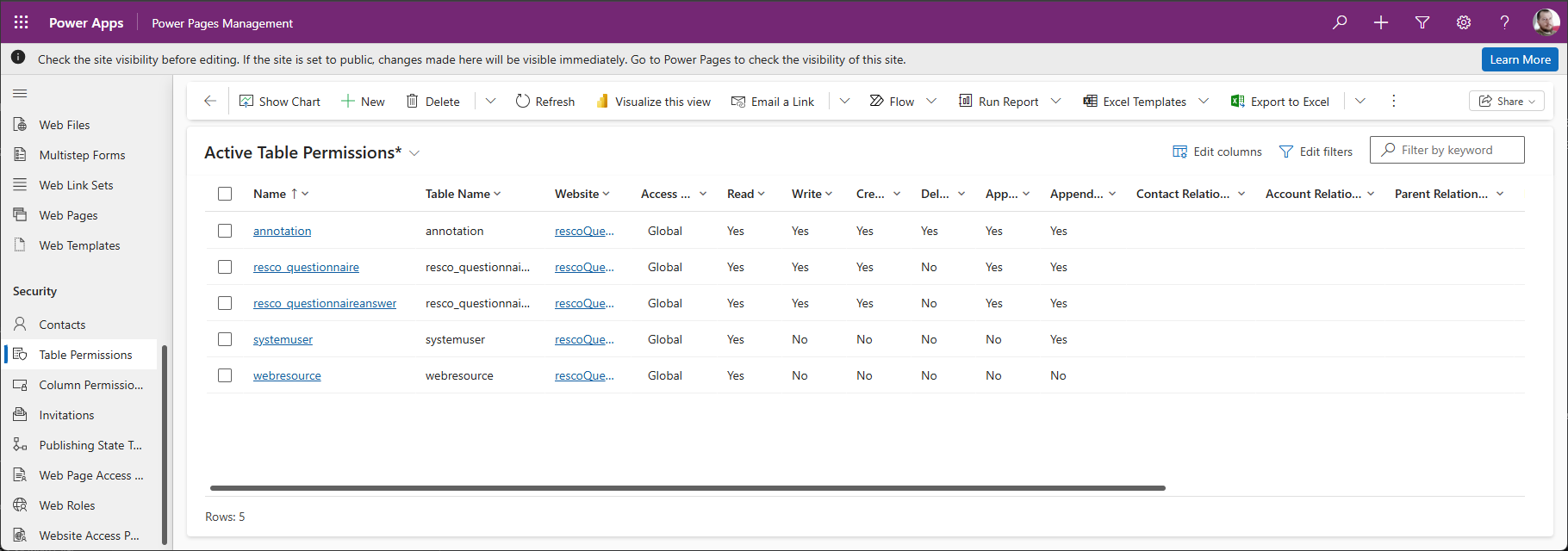
Set up table permissions
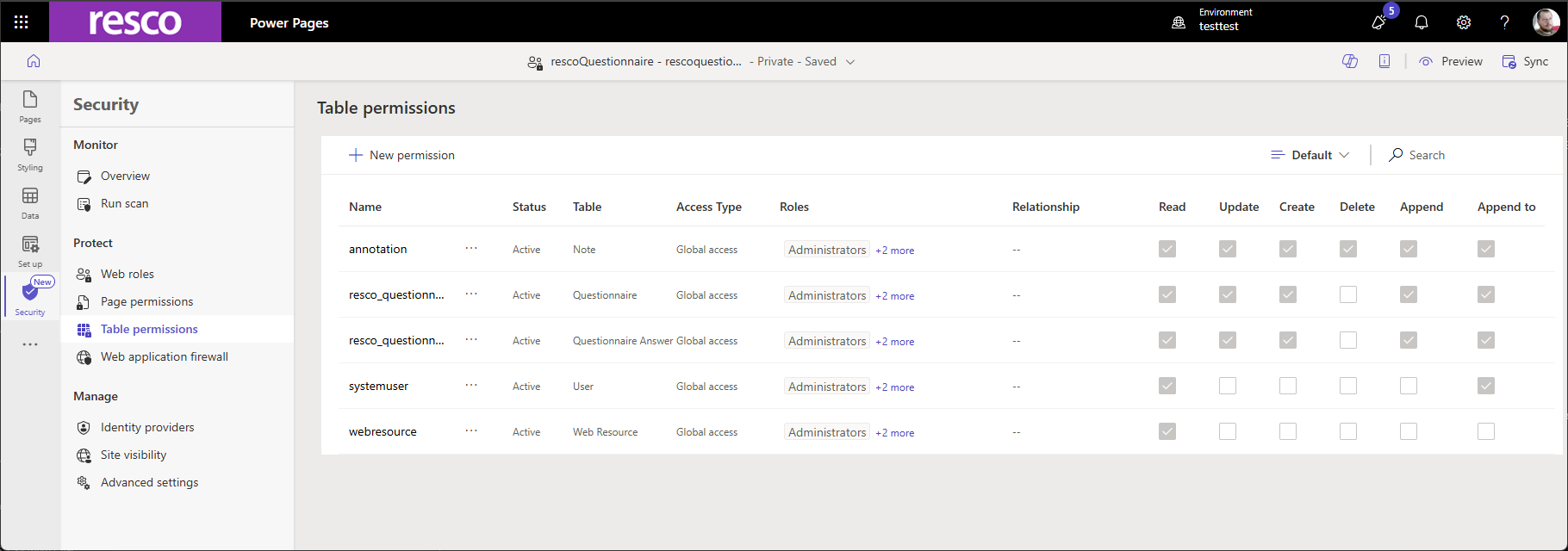
Add the necessary permissions for the following tables:
-
resco_questionnaire
-
resco_questionnaireanswer
-
annotation
-
systemuser
-
webresource
-
organization – Read
-
Any table accessible from your questionnaires (e.g., account, contact…)
You can decide what kind of access you want to grant users. Your web can be accessed by anonymous users or authenticated users. The access type might be global or parent, account, or contact. You can learn more about the security model of Power Pages in the official Microsoft documentation. In this document, we describe how to grant anonymous users access to the mentioned tables.
While editing your site, go to Security > Table permissions. For each table, repeat the following procedure:
-
Click +New.
-
Enter the Name of your permission, Website (if needed), and the Table Name.
-
Set Access Type to "Global".
-
Check the required privileges, for example, Read.
-
Click Add roles and check role(s) for which the permission is created. In our case, it is Anonymous Users.
-
Save all changes.
Set up web API access
Questionnaire Player uses the Microsoft Web API service to communicate with the underlying Dataverse organization. You must set the Web API access to the same tables as in the previous step.
-
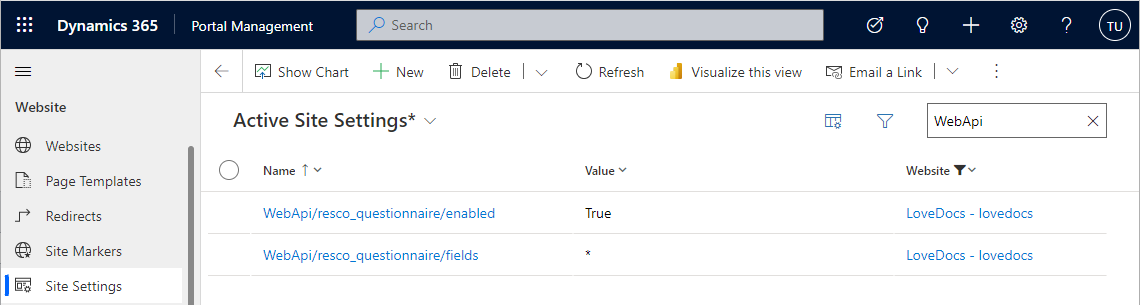
While editing your site, click the ellipsis button in the left pane (just under Set Up) and select Power Pages Management.
-
Select Website > Site Settings from the menu.
-
For each table, create two new site settings:
-
Enable the web API for this table.
-
Set up fields that should be available via web API (or use asterisk for all).
-
For the organization table, add more restricted web API permissions:
-
WebApi/organization/enabled Value: true
-
WebApi/organization/fields Value: organizationid
-
-
Content security policy
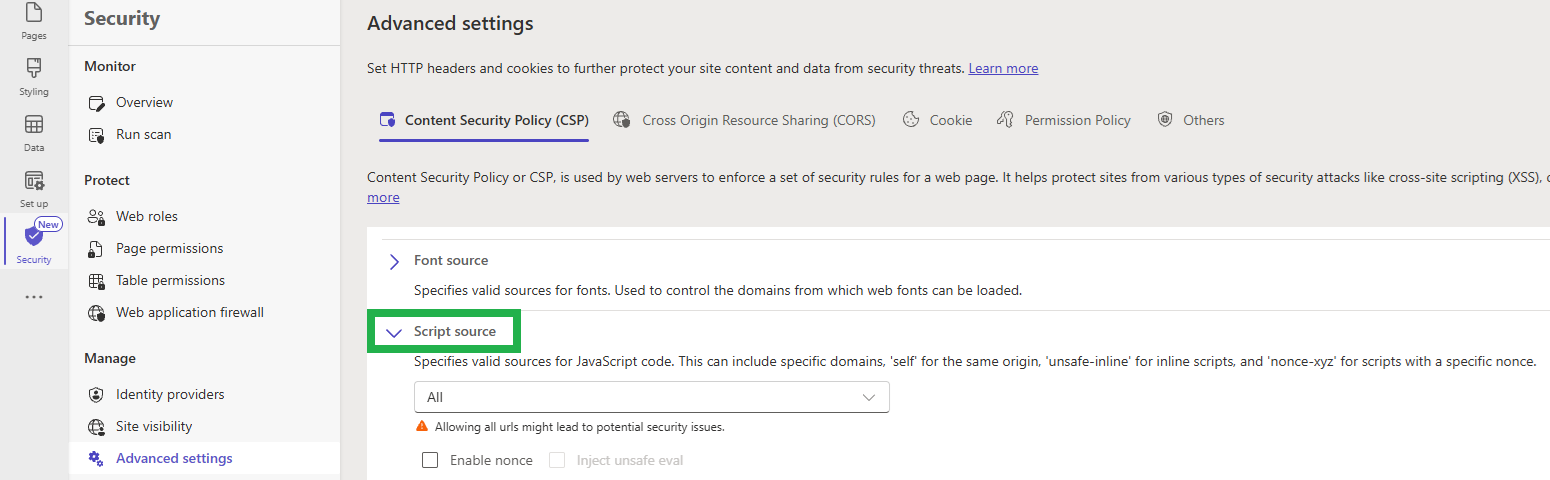
If you want to use questionnaires with qp-bridge on Power Pages, you need to enable inline scripts in your page's content security policy settings.
Adding the player to Power Pages
-
Include an external JavaScript in your page:
<script type="text/javascript" src="/_webresource/resco_questionnairePlayer/WebComponent/rescoQuestionnairePowerPageComponent.js"></script> -
Use the web component in your page:
<resco-questionnaire
  id="q1"
  questionnaire-id="3ca3a54d-f2b3-f011-bbd3-7ced8d769a67"
  regarding='{
    "entityName":"account",
    "name":"test",
    "id":"16b373ee-b0af-f011-bbd3-7c1e52365f30"
  }'
  user-id=
/>
<resco-questionnaire> attributes explained
-
id is the unique identifier of the HTML element
-
questionnaire-id is the GUID of the questionnaire (template or answer) to display
-
regarding: if you supply this optional attribute, it fills the fields regardingIdName, regardingId and regardingIdLabel on questionnaire answer
-
user-id: optional attribute, it can be initialized in Power Pages using Liquid
user-id=if user is logged
Functions and handlers
You can use JavaScript to work with the questionnaire player. It exposes some basic functions:
## Exposed Public Methods

The `resco-questionnaire` web component exposes the following public methods that can be called from JavaScript:

### `initializeExternalHandlers(handlers)`

Initializes external handlers for various questionnaire events.

**Parameters:**
- `handlers` (PowerPageHandlers | undefined): An object containing optional handler functions

**PowerPageHandlers Interface:**
```typescript
{
  openEntityForm?: (entityName: string, id?: string) => Promise<Reference | undefined>;
  onSave?: () => Promise<void>;
  onLoaded?: () => Promise<void>;
  onCommandExecuted?: (commandName: string) => Promise<void>;
}
Example:
const questionnaire = document.getElementById("q1");
questionnaire.initializeExternalHandlers({
    openEntityForm: async function(entityName, id) {
        console.log(`Opening form for ${entityName} with id: ${id}`);
        // Custom implementation to open entity form
        return { id: id, name: entityName };
    },
    onSave: async function() {
        console.log("Questionnaire is being saved");
        // Validation logic - throw error to prevent save
        // This is called BEFORE the save operation
    },
    onLoaded: async function() {
        console.log("Questionnaire has loaded");
        // Custom logic after questionnaire loads
    },
    onCommandExecuted: async function(commandName) {
        console.log(`Command executed: ${commandName}`);
        // Custom logic after command execution
    }
});
save()
Saves the current state of the questionnaire.
Returns
-
Promise<boolean>: Resolves to true if save was successful, false otherwise
Example
const questionnaire = document.getElementById("q1");
const success = await questionnaire.save();
if (success) {
    console.log("Questionnaire saved successfully");
} else {
    console.error("Failed to save questionnaire");
}
Notes
-
If an
onSavehandler is registered, it will be called during the save operation. -
If the
onSavehandler throws an error, the save will be prevented.
complete()
Marks the questionnaire as completed and closes it.
Returns
-
Promise<boolean>: Resolves to true if complete was successful, false otherwise
Example
const questionnaire = document.getElementById("q1");
const success = await questionnaire.complete();
if (success) {
    console.log("Questionnaire completed successfully");
} else {
    console.error("Failed to complete questionnaire");
}
executeCommand(cmdName)
Executes a named custom command in the questionnaire.
Parameters
-
cmdName(string): The name of the command to execute
Returns
-
Promise<boolean>: Resolves to true if command execution was successful, false otherwise
Example
const questionnaire = document.getElementById("q1");
const success = await questionnaire.executeCommand("SendEmail");
if (success) {
    console.log("Command executed successfully");
} else {
    console.error("Failed to execute command");
}
Notes
-
If an
onCommandExecutedhandler is registered, it will be called after successful command execution. -
The command must exist in the questionnaire configuration.
withBusyIndicator(action)
Wraps an asynchronous action with a busy indicator (loading spinner) in the questionnaire UI.
Parameters
-
action(() => Promise<T>): An async function to execute while showing the busy indicator
Returns
-
Promise<T>: Resolves to the value returned by the action
Example
const questionnaire = document.getElementById("q1");

// Wrap multiple operations with a single busy indicator
const result = await questionnaire.withBusyIndicator(async () => {
    await questionnaire.executeCommand("ValidateData");
    await questionnaire.save();
    return "Operations completed";
});

console.log(result); // "Operations completed"
Complete usage example
document.addEventListener('DOMContentLoaded', async function() {
    // Wait for the custom element to be defined
    await customElements.whenDefined('resco-questionnaire');

    const questionnaire = document.getElementById("q1");

    // Initialize handlers
    questionnaire.initializeExternalHandlers({
        onSave: async function() {
            console.log("About to save questionnaire");
            // Perform validation
            // throw new Error("Validation failed") to prevent save
        },
        onLoaded: async function() {
            console.log("Questionnaire loaded successfully");
        },
        onCommandExecuted: async function(commandName) {
            console.log(`Command ${commandName} was executed`);
        },
        openEntityForm: async function(entityName, id) {
            console.log(`Opening ${entityName} form with id: ${id}`);
            return { id: id, name: entityName };
        }
    });
});

// Save questionnaire with busy indicator
async function saveWithIndicator() {
    const questionnaire = document.getElementById("q1");
    const success = await questionnaire.withBusyIndicator(async () => {
        return await questionnaire.save();
    });

    if (success) {
        alert("Saved successfully!");
    }
}

// Complete questionnaire
async function completeQuestionnaire() {
    const questionnaire = document.getElementById("q1");
    const success = await questionnaire.complete();

    if (success) {
        console.log("Questionnaire completed and closed");
    }
}

// Execute custom command
async function sendNotification() {
    const questionnaire = document.getElementById("q1");
    const success = await questionnaire.executeCommand("SendNotification");

    if (success) {
        console.log("Notification sent");
    }
}
Error handling
All methods return Promise<boolean> (except withBusyIndicator) to indicate success or failure. Always check the return value and handle errors appropriately:
try {
    const success = await questionnaire.save();
    if (!success) {
        console.error("Save operation failed");
        // Handle failure case
    }
} catch (error) {
    console.error("Unexpected error:", error);
    // Handle exception
}
Errors are also logged to the browser console with descriptive messages for debugging purposes.
Handler execution flow
onSave handler
-
When: Called BEFORE save operation (validator)
-
Purpose: Validate data, perform pre-save checks
-
Can prevent save: Yes (by resolving promise with false
-
Triggered by:
-
Calling
questionnaire.save() -
Clicking the save button inside the questionnaire UI
-
Executing custom script
-
getQuestionnaireIdByTemplateName function
Preview Planned for release 19.1.
getQuestionnaireIdByTemplateName(templateName: string, []?: ["published", "draft", "staged", ...]
This function retrieves the latest published version of a template.
-
As the first parameter, use the template name.
-
The second optional parameter overrides the published statuscode of the searched questionnaire.
On the page with the latest Questionnaire Player component, the function can be accessed like this:
const questionnaireId =
   await window.Resco.Questionnaires
       .getQuestionnaireIdByTemplateName("My Template", ["published", "draft"]);
The following comprehensive example demonstrates a complete implementation of the getQuestionnaireIdByTemplateName function within an HTML page. It sets up a container for the questionnaire, waits for the Resco API to be available, retrieves the questionnaire ID by template name (searching across multiple status types), and then dynamically creates and mounts the resco-questionnaire web component with the resolved ID. The script includes comprehensive logging for debugging and error handling to gracefully handle cases where the questionnaire cannot be found or loaded.
<div
  data-component-theme="portalThemeColor1"
  class="row sectionBlockLayout text-start"
  style="display: flex; flex-wrap: wrap; margin: 0px; min-height: auto; padding: 8px"
>
  <div class="container" style="padding: 0px; display: flex; flex-wrap: wrap">
    <h2>Questionnaire</h2>
    <div class="col-lg-12 columnBlockLayout" style="flex-grow: 1; display: flex; flex-direction: column; min-width: 300px">
      <div id="questionnaireHost">
        <span id="questionnaireLoading">Loading questionnaire...</span>
      </div>
    </div>
  </div>
</div>

<script type="text/javascript" src="/_webresource/resco_questionnairePlayer/WebComponent/rescoQuestionnairePowerPageComponent.js"></script>
<script type="text/javascript">
  (async function () {
    console.log('[Questionnaire] Script started');

    const host = document.getElementById('questionnaireHost');
    const loading = document.getElementById('questionnaireLoading');

    console.log('[Questionnaire] host element:', host);
    console.log('[Questionnaire] loading element:', loading);

    try {
      console.log('[Questionnaire] Waiting for window.Resco.Questionnaires...');
      while (!window.Resco || !window.Resco.Questionnaires) {
        await new Promise((resolve) => setTimeout(resolve, 100));
      }
      console.log('[Questionnaire] Resco API ready:', window.Resco.Questionnaires);

      const templateName = 'name-of-your-questionnaire';
      console.log(`[Questionnaire] Looking up template: "${templateName}"`);

      const questionnaireId = await window.Resco.Questionnaires.getQuestionnaireIdByTemplateName(templateName, ['published', 'staged', 'archived', 'draft']);

      console.log('[Questionnaire] Resolved questionnaireId:', questionnaireId);

      if (!questionnaireId) {
        throw new Error(`Questionnaire ID not found for template '${templateName}'`);
      }

      const questionnaireComponent = document.createElement('resco-questionnaire');
      questionnaireComponent.style.width = '100%';
      questionnaireComponent.setAttribute('questionnaire-id', questionnaireId);
      questionnaireComponent.setAttribute('user-id', '');

      console.log('[Questionnaire] Mounting component into host...');
      host.innerHTML = '';
      host.appendChild(questionnaireComponent);
      console.log('[Questionnaire] Component mounted successfully');
    } catch (error) {
      console.error('[Questionnaire] Failed to load questionnaire:', error);
      if (loading) {
        loading.textContent = 'Failed to load questionnaire.';
      }
    }
  })();
</script>
Limitations
-
Data mapping is not available for Power Pages
-
Rules that use metadata are not supported
-
Questionnaire reports are not available