
Gen 2 questionnaires can be played on Power Apps. Unlike the legacy integration, the second-generation player is a native PCF (Power Apps Control Framework) component. The player is now "context-aware"; it can often infer the correct template from the form context, or display a native lookup dialog for immediate selection. The player can automatically link itself to parent records—like Assets or Accounts—by passing "Regarding" information directly through the form parameters.
Basic integration
It is very simple to build model-driven Power Apps with Resco questionnaires. Perhaps the easiest method is to start from the "Resco Inspections" app. It includes all the standard components of Resco Inspections: you can design questionnaires, browse templates, fill out forms, and review answers.
If you want to add questionnaires to an existing model-driven app, add the following:
-
Questionnaire table
-
Questionnaire Answer table
-
Questionnaire Designer (web resource)
The designer is relevant only to users who create or modify questionnaire templates. Standard users probably don't need it.
Adding questionnaire player to a form
Gen 2 player is a Power Apps component that you can add to any form.
-
Edit your model-driven app.
-
Edit the form of the table where you want to add questionnaires.
-
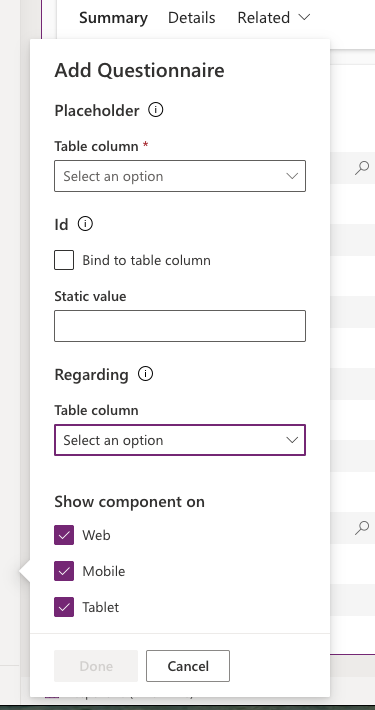
Go to the Components tab, select More components > Questionnaire and add it to your form.
-
As the Placeholder, select any field.
-
As Id, either enter a static value or select a field that contains the ID of a questionnaire or questionnaire template.
-
If you enter a template ID, you can use the player to answer new questionnaires.
-
If you enter a questionnaire answer ID, you can use the player to display an answered questionnaire.
-
-
Optionally, as Regarding, select a lookup field. The lookup target will be used as the regarding record of the questionnaire.
-
Save all changes.
Working with the regarding record
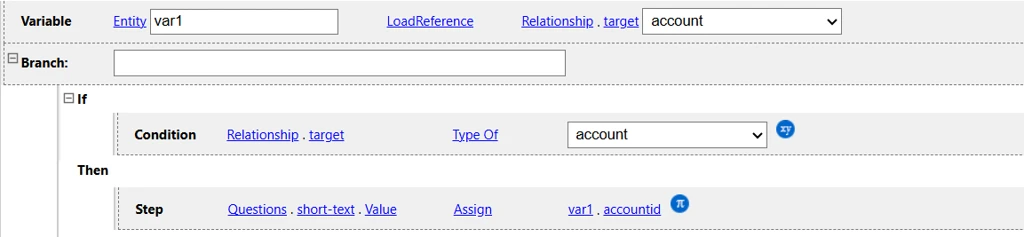
If you launch a questionnaire from a form, e.g., an account, we call the account record the regarding record. The questionnaire knows from where it was opened. You can access the regarding record from the questionnaire as the Relationship.targetusing rules.
Adding questionnaire answers subgrid to a form
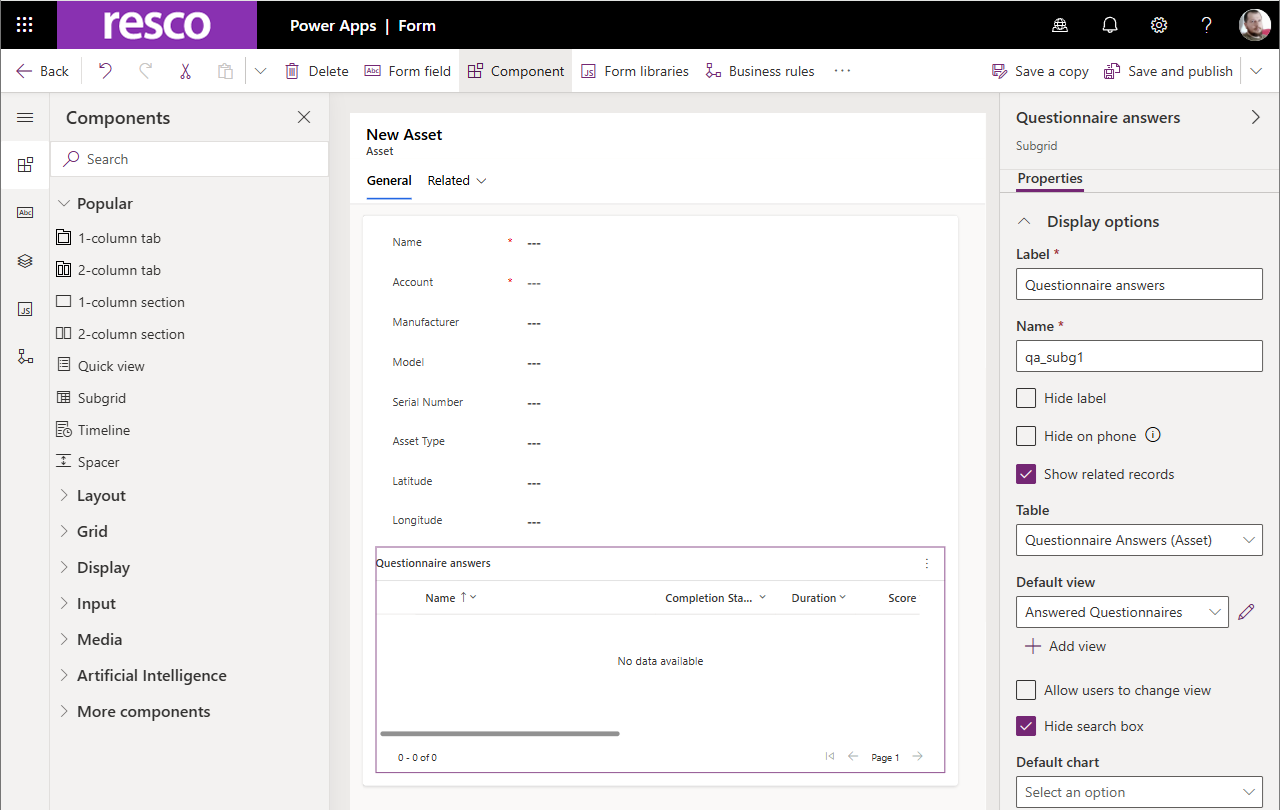
To better integrate questionnaires into your workflow, it is often useful to add them directly to the form of the task a field person is working on. In the scenario below, we're adding questionnaires to the Asset form. Users open the form of the asset they are inspecting, and they can immediately see all previous answers related to the asset, and start a new questionnaire.
Quick setup
-
Add a one-to-many relation between Asset and Questionnaire Answer.
-
Add the new relation to the Questionnaire Answer form.
-
Add Questionnaire Answers subgrid to Asset form (or use the related tab).
Detailed instructions
-
Edit your model-driven app.
-
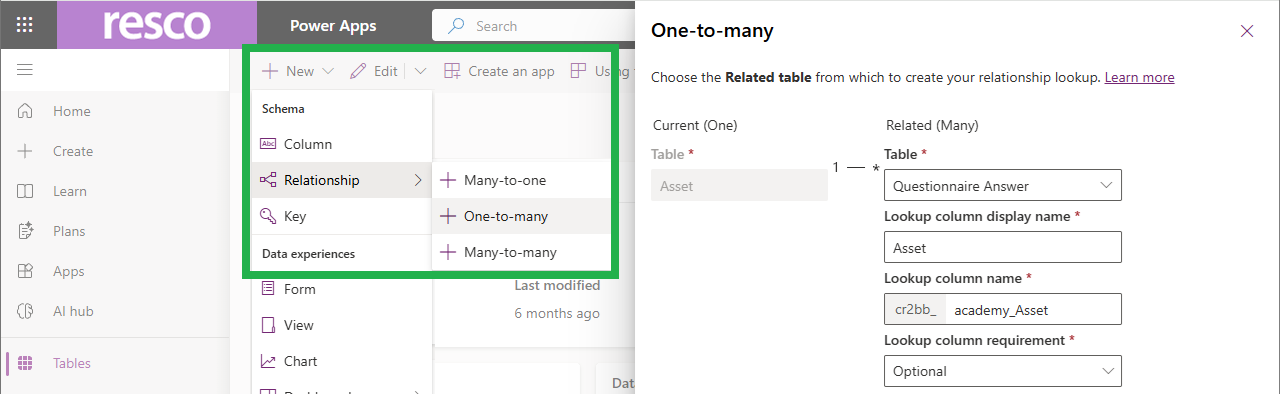
Go to the Asset table and click New > Relationship > One-to-many.
-
Create the new relation.
-
Go to the Questionnaire Answer table and edit the form called "Form". (That's the default one; if you are using a different form, edit that one.)
-
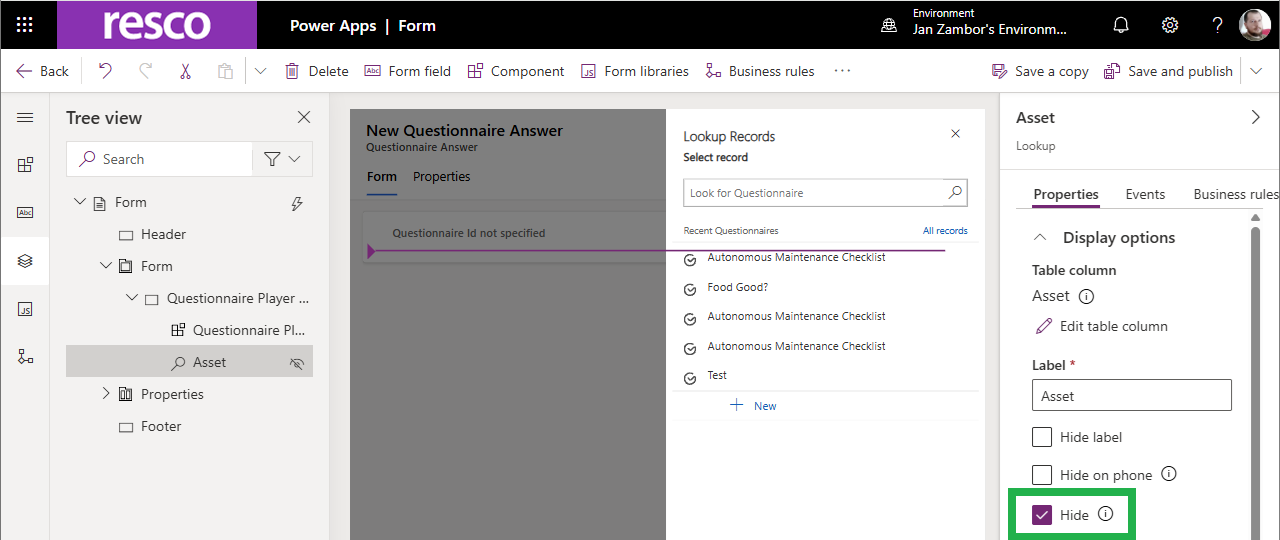
Add the new relation to the form. You can make it hidden.
-
Save and publish all changes.
-
Go to the Asset table and edit the form.
-
Add a new subgrid for Questionnaire Answers.
-
Save and publish all changes.