
Use this guide to learn how to:
-
build your first questionnaire
-
upgrade one from the previous generation
-
answer the questionnaire using different tools
-
check the answers on the backend
Resco Inspection model-driven app
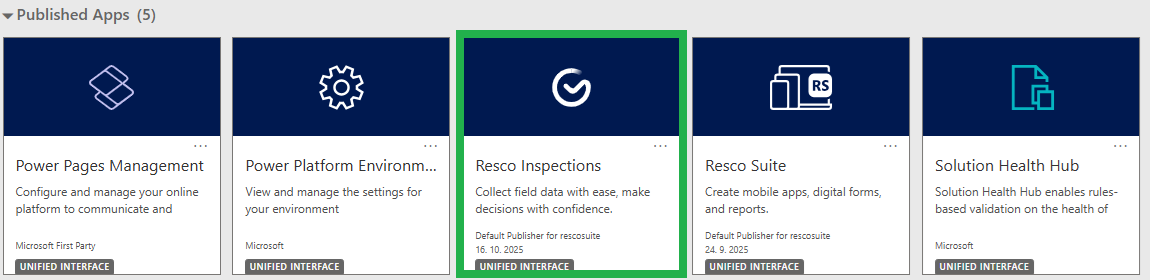
On Microsoft Dynamics 365/Power Platform, you can use the Resco Inspections model-driven app to access the second-generation questionnaires. The app is part of the Resco Suite solution. It is available in the list of your published apps:
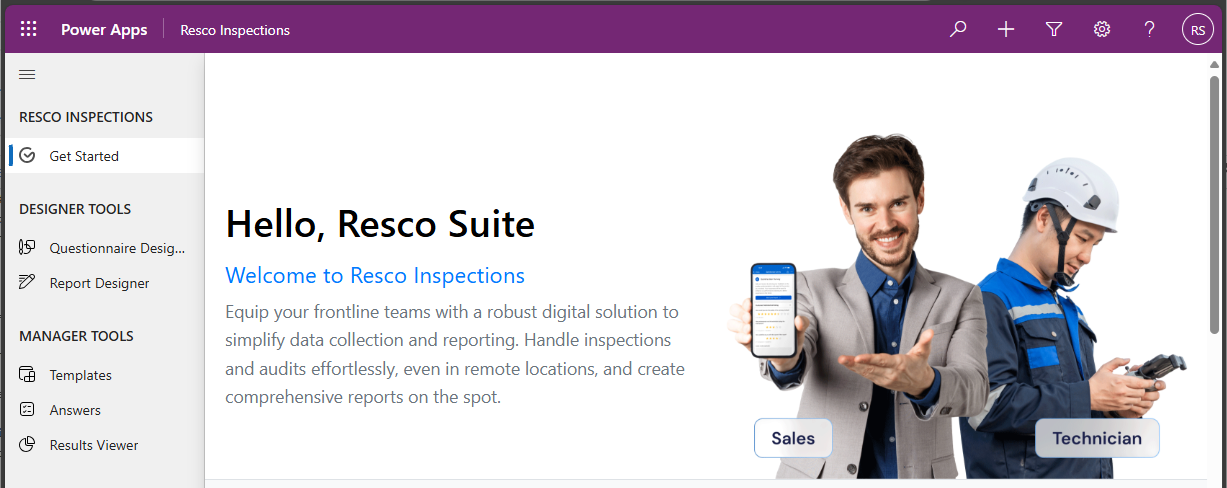
The app includes a welcome page with basic information and five menu items:
-
Questionnaire Designer - use it to create a new questionnaire
-
Report Designer - use it for creating advanced reports from questionnaires or other data
-
Templates - list of questionnaire templates. Select any published template and start filling out the form.
-
Answers - list of completed questionnaires.
-
Result Viewer - use it to search, filter, and export questionnaire answers
Creating your first questionnaire
-
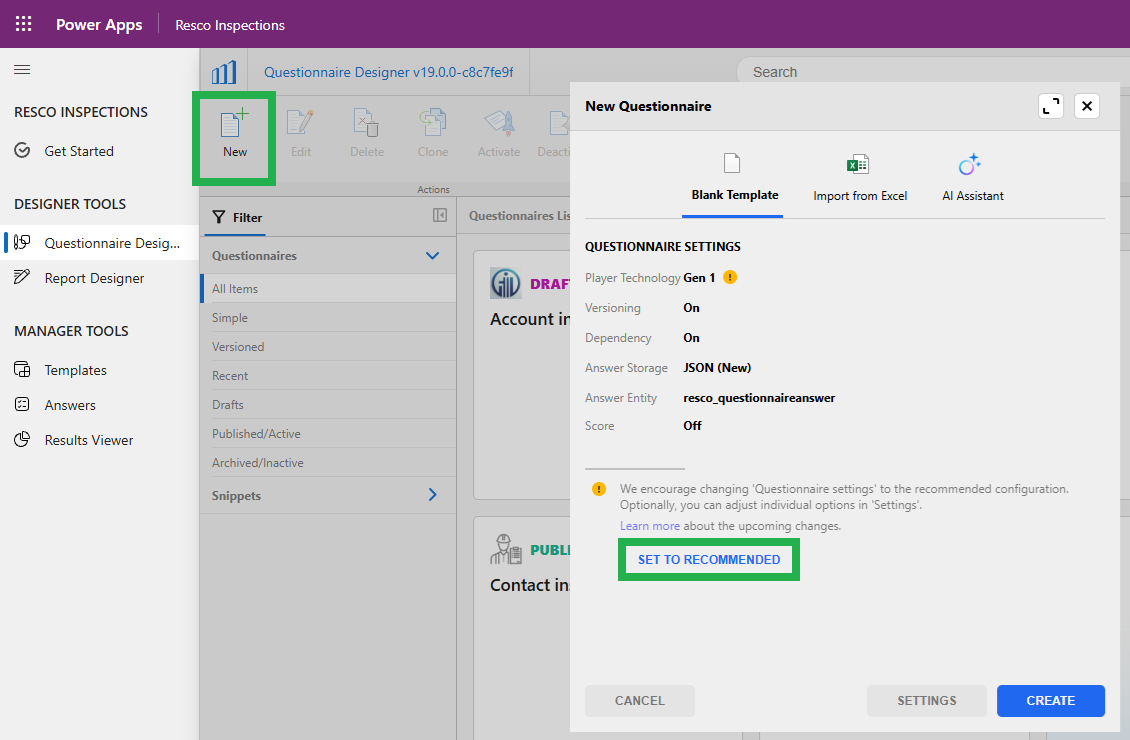
Start Questionnaire Designer and click New.
-
Verify that the Player Technology is set to "Gen 2". If not, click Set to recommended to use the optimal settings.
-
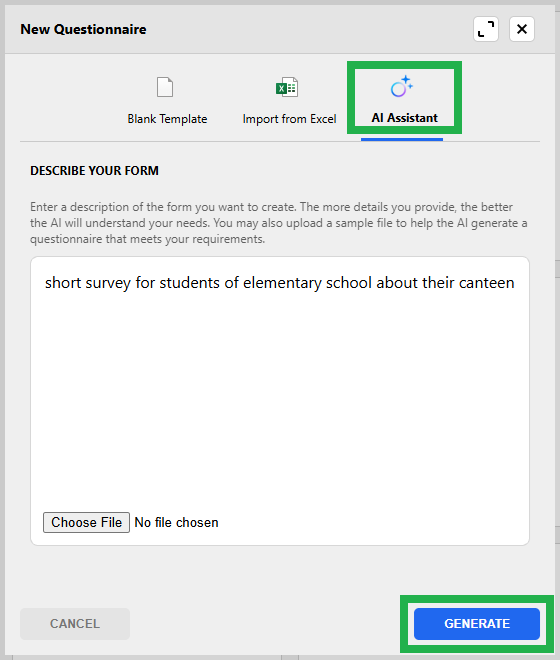
Go to the AI Assistent tab and describe your questionnaire. You can also upload a sample file for even better results. Click Generate.
-
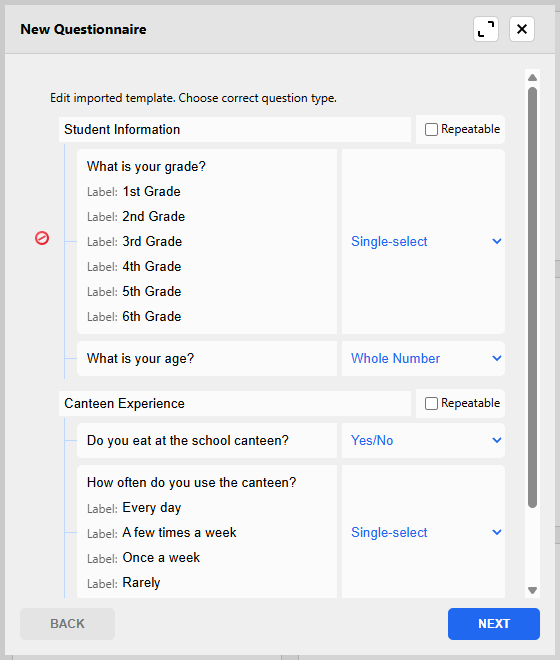
Wait until the AI generates a questionnaire. You can delete questions, modify question types, or continue and finish the wizard.
-
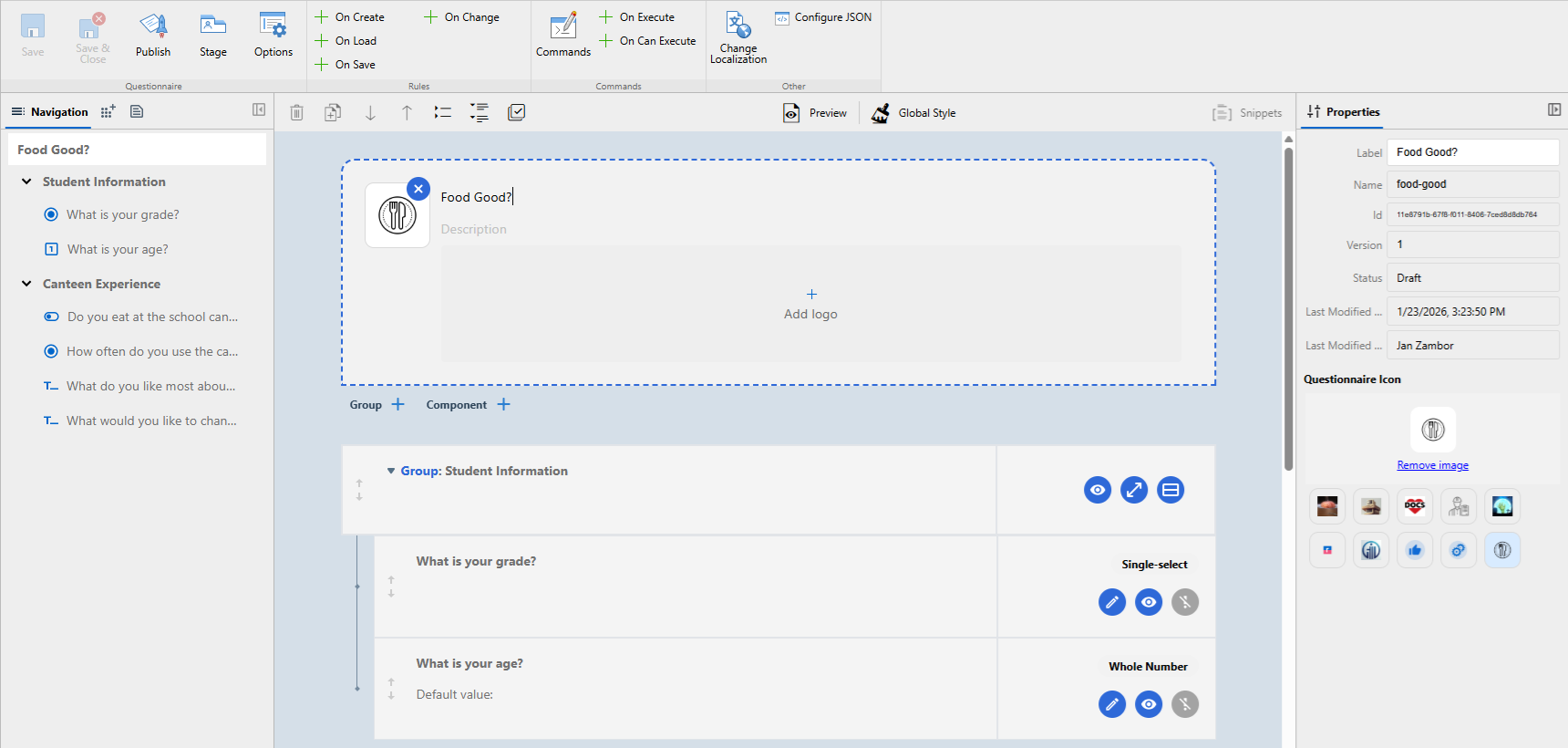
This is the main screen of the Questionnaire Designer. You can use it to add questions, modify styles, finetune the behavior using business logic, and much more. For your first questionnaire, consider entering a suitable name for the survey and perhaps adding a question or two. To learn more about the options here, see Questionnaire Designer.
-
When you're done, save all changes and publish the questionnaire.
Upgrading legacy questionnaires
If you have used questionnaires before, you may have a batch of questionnaires ready for upgrade. Depending on the size of the questionnaires, their settings, use of styles, rules, and other business logic, the upgrade can be either smooth and quick or tricky.
Note
You don't have to upgrade right now! You can continue using your existing technology and upgrade when you need to redesign the questionnaire, or take advantage of new features unavailable in legacy questionnaires.
-
Start Questionnaire Designer.
-
Select a legacy questionnaire template and back it up. For example, you can export it to keep a local copy, or save and publish just before upgrading to ensure it is available in the version history.
-
Revise the questionnaire and edit it.
-
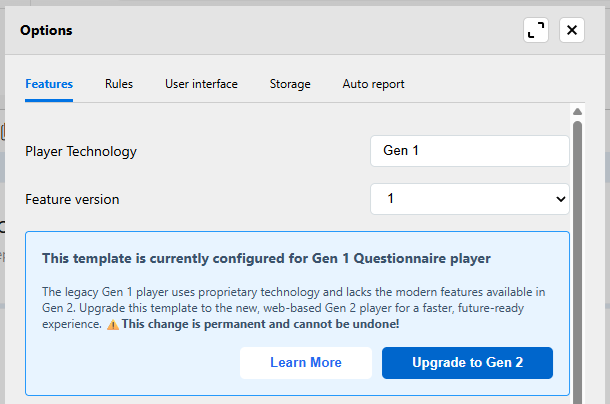
Go to Options and click Upgrade to Gen 2.
-
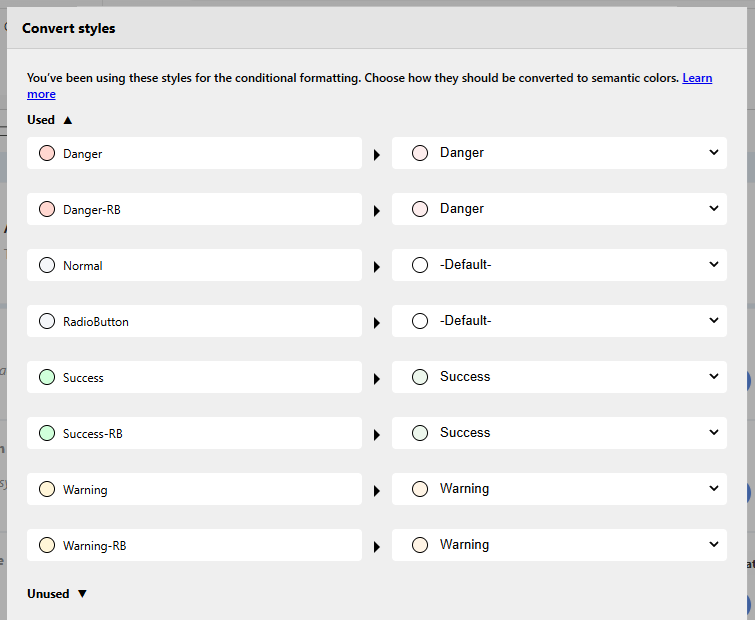
On the Convert styles screen, review the mapping of old colors to new colors, then finish the conversion and save the new options.
-
When you attempt to save the questionnaire, validation occurs. Some questionnaire components might be unavailable, for example, the description component is replaced by rich text. Manually delete the invalid components and replace them with Gen 2 alternatives.
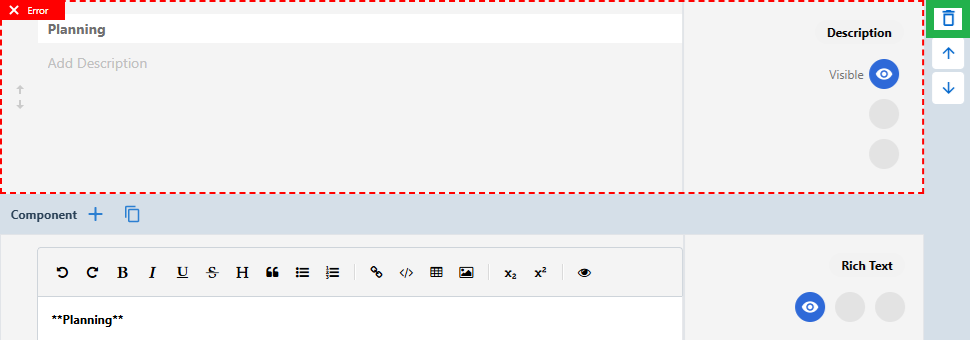
-
Additional conversion might be necessary in rules. JavaScript will probably require significant rewriting.
-
Save all changes and publish the questionnaire.
Additional reading:
Answering questionnaires in a model-driven app on the web
As soon as you publish a questionnaire in the designer, you can test it. The easiest way is to use the player directly in the model-driven app Resco Inspections.
-
Start Resco Inspections.
-
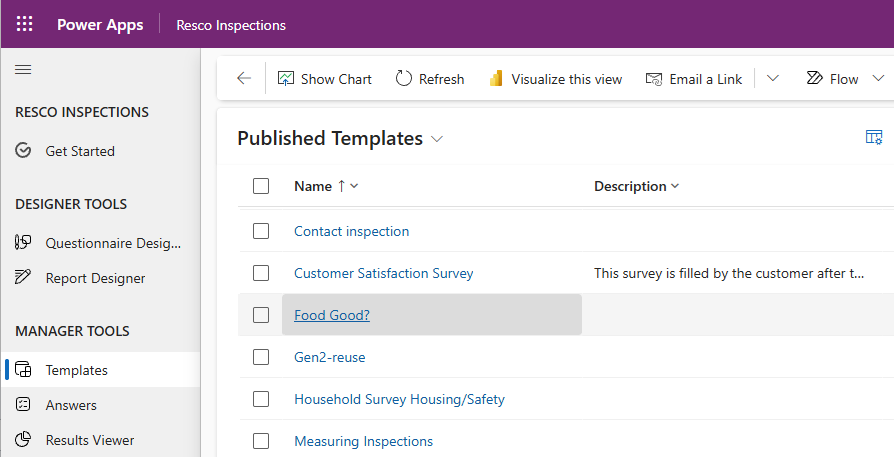
Select Templates from the menu.
-
Click the questionnaire template that you just published.
-
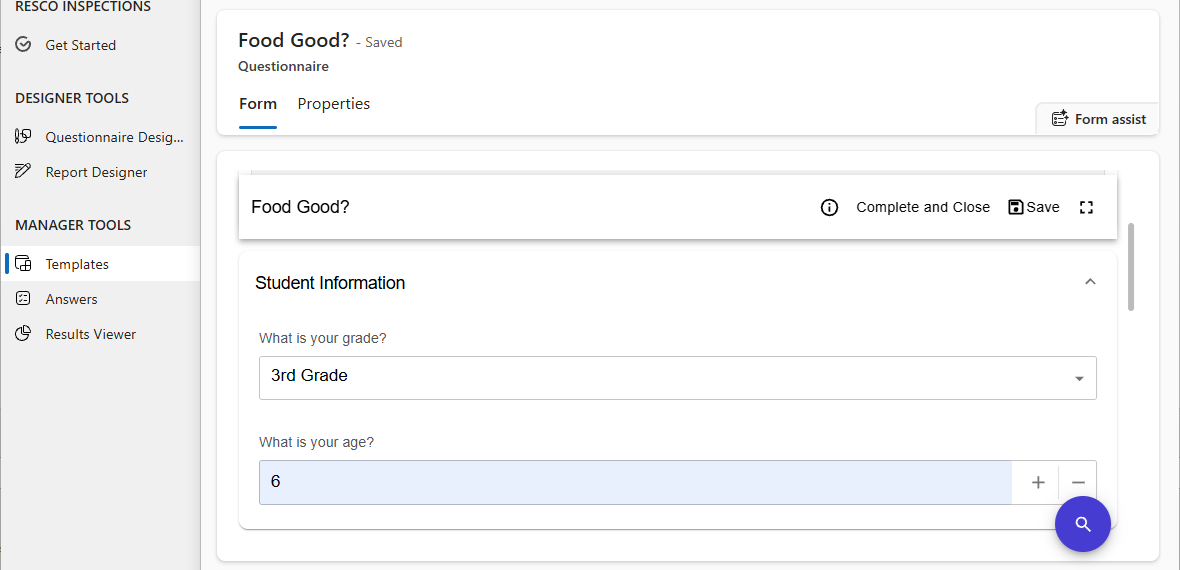
Fill out the form, then click Complete and Close.
Using the player
In this section, we explain the main parts of the player and how to use it.
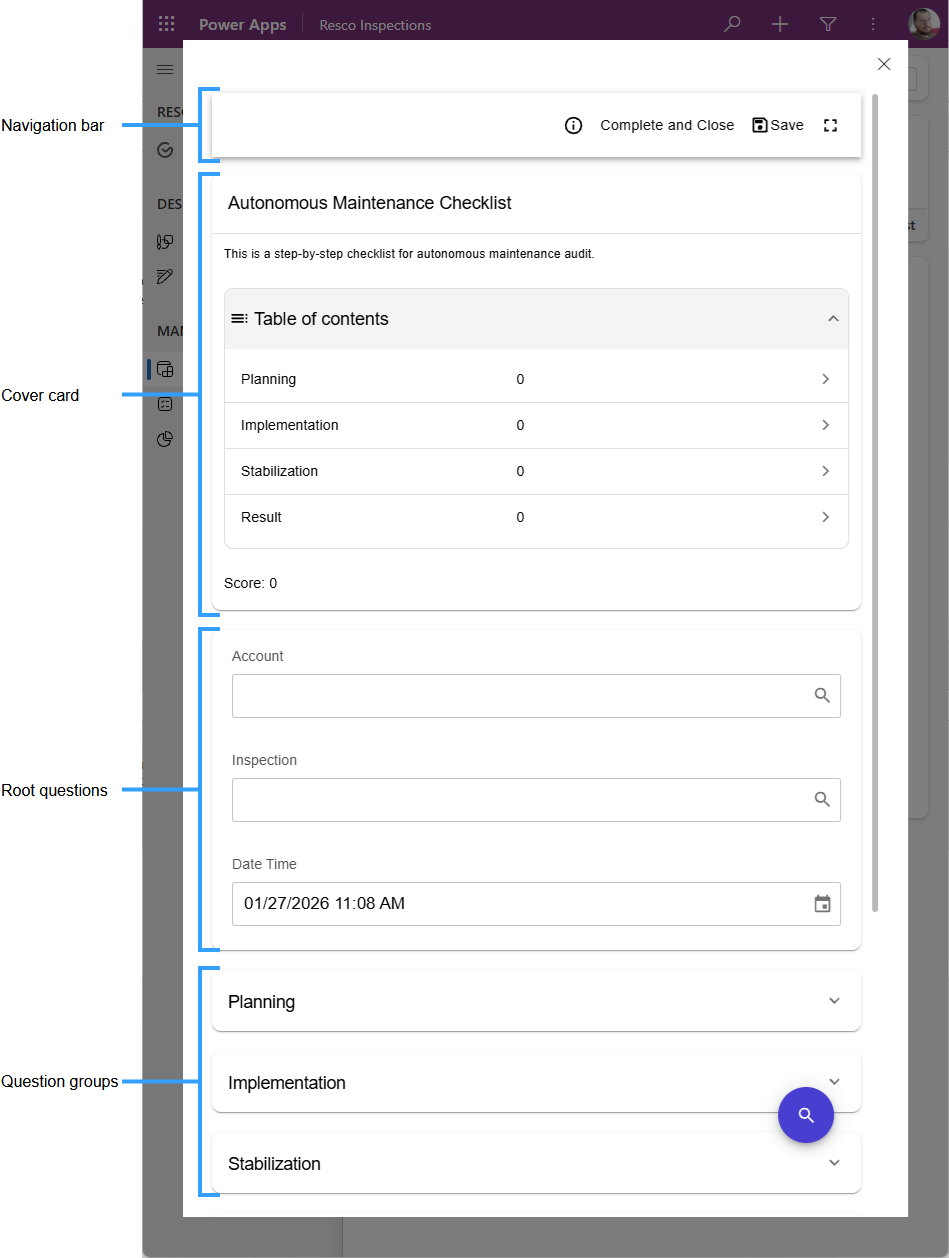
The navigation bar is at the very top of the player.
-
It includes the action buttons for controlling the player. It remains visible when scrolling.
-
Use Complete and Close to save all changes, mark the answer as complete (i.e., it can no longer be changed), and close the form.
-
Use Save if you want save the current state of the answer and complete it later.
-
The information button provides details about the player that can be useful to technical support in case of issues. You can also access logs here.
-
The full-screen switch pops out the questionnaire form to use the entire available window height.
-
In Resco Mobile CRM, the navigation bar is replaced by a native component of the app.
The cover card contains additional details about the questionnaire.
-
The title of the template is displayed prominently. When you scroll down, the title moves into the navigation bar.
-
Optionally, additional details about the template are included here: a description and a logo.
-
The table of contents is automatically generated from group headers. It allows you to jump straight to the relevant section of the questionnaire.
-
If the questionnaire uses scoring, the total score, and optionally the group scores, are displayed here.
The root questions and question groups follow.
-
The groups are collapsible.
-
The floating Search button helps you find the questions you need.
The same form is also used for answered questionnaires, except the questionnaire is read-only, and most action buttons are disabled.
Checking answered questionnaires
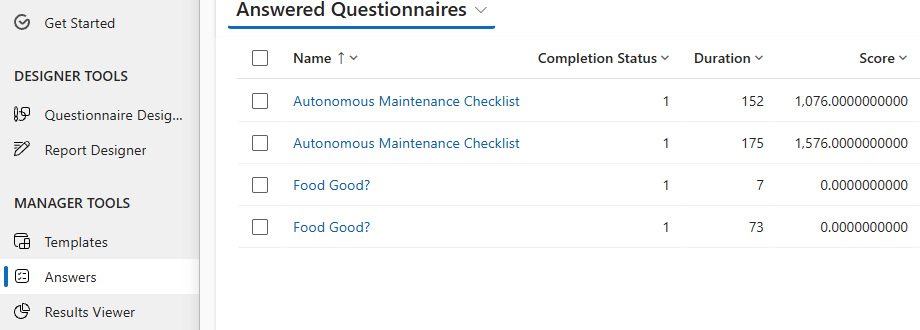
Data from saved and completed questionnaires is stored in your backend. Again, the easiest way to access completed questionnaires is to use the model-driven app Resco Inspections.
-
Start Resco Inspections.
-
Select Answers from the menu.
-
Click any questionnaire for details.
Alternatively, you can use the Results Viewer to search in answered questionnaires and export the data in various formats.
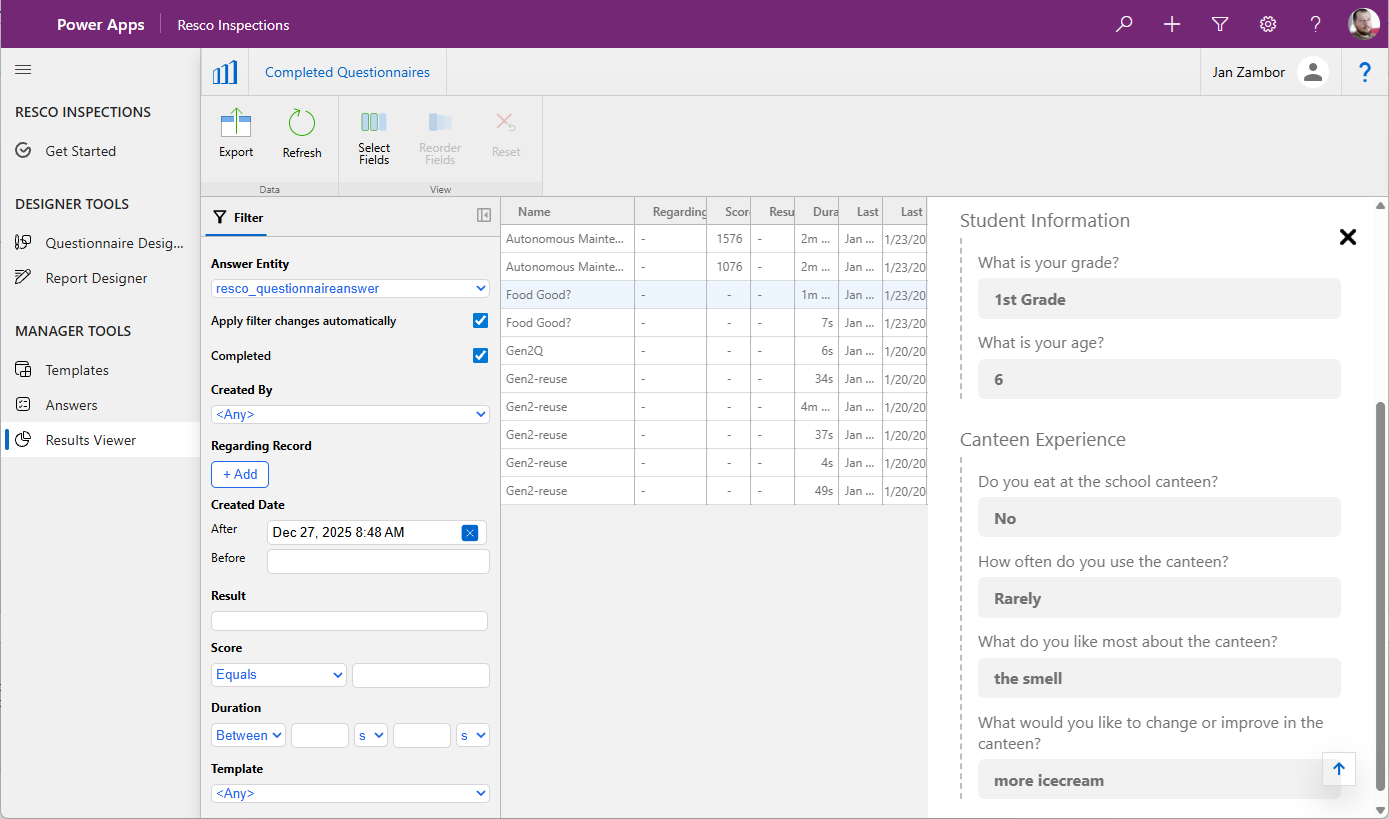
If you want to use external reporting platforms to work with questionnaire data, see also the Deep dives section. It includes several topics related to JSON deserialization and Power BI.