
Use this guide to install and set up the second-generation questionnaires in your organization.
Prerequisities
The second generation of Resco questionnaires is released in Resco update 19.0.
Supported backends
-
Microsoft Dynamics 365 Field Service/Field Sales
-
Microsoft Power Platform
-
Resco Cloud
(New questionnaires are not yet available for Salesforce.)
Supported players
You can play the questionnaires in:
-
Resco Mobile CRM 19.0 or later
-
Microsoft Power Apps
-
Microsoft Power Pages
Installing Resco Suite
If you are using Microsoft Dynamics or Microsoft Dataverse:
-
Go to the Downloads and Logins page.
-
Download the appropriate solution file, depending on your Dynamics version.
-
Go to https://make.powerapps.com/ and log in as a system administrator.
-
Select the environment where you want to install Resco Suite.
-
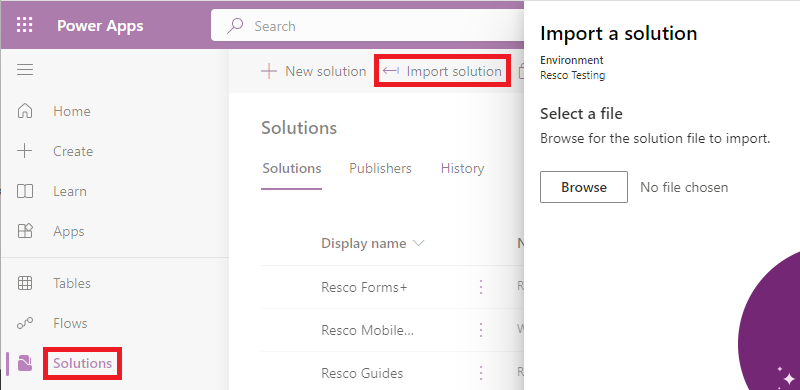
Select Solutions from the left navigation.
-
On the command bar, click Import solution and select the downloaded Woodford zip file.
-
Finish the import wizard.
-
Publish all customizations.
See your Dataverse or Dynamics documentation for more information about uploading solution packages or publishing customizations.
Tip
This is the standard installation/update procedure of Resco Suite. New questionnaires are part of it since release 19.0.
Installing Resco Cloud
If you are using Resco Cloud as your backend, the software is updated automatically.
Setting up Resco Mobile CRM
Resco Mobile CRM is a mobile app available for Android, iOS, and Windows devices. Search the appropriate store for "Resco Mobile CRM" or find the link on the Downloads & Logins page.
Using Resco Mobile CRM for questionnaires requires that you have an app project published for your role. Create a new project or update one of your existing.
Creating a new app project
-
Start Woodford.
-
Create a new app project for standard users with the template "Inspector" and assign it to your user role.
-
On your Home screen, verify that it includes the templates view from the Questionnaire entity and any view from Questionnaire Answer entity.
-
Publish the app project.
Updating an app project for Gen 2
Tip
You can use both generations of questionnaires in parallel.
-
Start Woodford and edit the project.
-
Check the data model: Make sure that the following entities are enabled: Questionnaire and Questionnaire Answer.
(The second generation of questionnaires no longer uses the entities Question and Question Group. If you want to use both generations in parallel, keep these entities enabled. If not, you can disable them.) -
Check the views.
-
The Questionnaires view serves for questionnaire templates. Verify that the field "Feature Version" is enabled in the view; apps use it to launch the correct player for each template. Set up a suitable view filter and sync filter (examples, data model).
-
The Questionnaire Answers view is for filled questionnaires. The field resco_questionnaire.resco_featureversion (Feature Version on the parent template) must be enabled in the view.
-
-
Check the home screen: all needed views should be enabled.
-
Publish the app project.
Connecting to backend
Once you have a published app project, you can connect to it using the Resco app.
-
Start Resco Mobile CRM on your device.
-
Enter the URL of your backend, e.g.
https://org12345678.crm4.dynamics.com/, and log in to your organization. -
See Connecting to CRM for detailed instructions if needed.
Installing Microsoft Power Apps
Power Apps is a mobile app available for Android, iOS, and Windows devices. Search the appropriate store for "Power Apps" or find the link in Microsoft documentation.