
The synchronization in Resco Mobile CRM establishes data consistency between the CRM server and the mobile app. Traditionally, synchronization covers all entities in the app's data model. However, some use cases warrant targeted partial sync, skipping some entities and sync steps to save time and ensuring critical data is available asap.
SmartSync is a partial, background, usually incremental sync. Let's clarify this definition:
-
Partial means that only a subsection of the data model is synced, for example, a single entity. You can also limit the direction: upload local updates from the device or download fresh server data. Finally, you can also skip some of the synchronization steps.
-
Background means that it doesn't block operation: users can continue working with the app
-
Incremental means that only the changes are transferred. This is not a hard rule; full sync is required or enforced in some situations. But in general, transfer changed records only.
Prerequisites
SmartSync was introduced in release 19.1. Both Woodford and Resco Mobile CRM must be updated.
As a subset of automatic synchronization, similar requirements apply. Review the app project Configuration: most importantly, set Background sync to "On".
Setting up SmartSync
SmartSync is set up in Woodford.
-
Edit an app project in Woodford.
-
On the Project menu, select Settings > Synchronization.
-
Switch to the Smart Sync Config tab.
Defining a SmartSync profile
A SmartSync profile is a named instance of SmartSync. It defines which entities to sync, in which direction (upload/download), and when (trigger).
Image / XML example
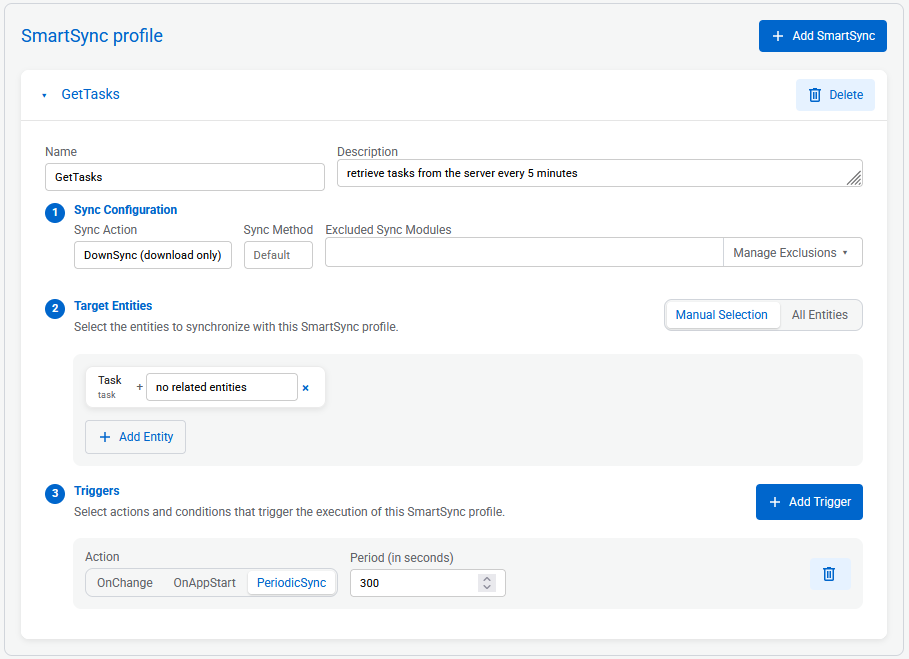
<SmartSyncSetup>
  <SmartSync Name="GetTasks" SyncAction="DownSync" SyncMethod="Default" GlobalExclusions="true" AutoExclusions="true">
    <Description>retrieve tasks from the server every 5 minutes</Description>
    <Entities>
      <Entity Name="task" WithRelated="false" Deep="false">
      </Entity>
    </Entities>
  </SmartSync>
  <Trigger Launch="GetTasks" Delay="300" Action="PeriodicSync">
  </Trigger>
</SmartSyncSetup>
-
On the Smart Sync Config tab, click Add SmartSync.
-
As Name, enter a short identifier for this profile. You can use it to execute the right profile using JavaScript.
-
As Sync Action, select upload, download, or both.
-
As Excluded Sync Modules, select which synchronization steps to exclude.
-
Select which entities or include (or exclude).
-
Choose Manual Selection if you want to whitelist entities. For each whitelisted entity, you can also include related entities. If you are including related entities, you can opt to exclude some.
-
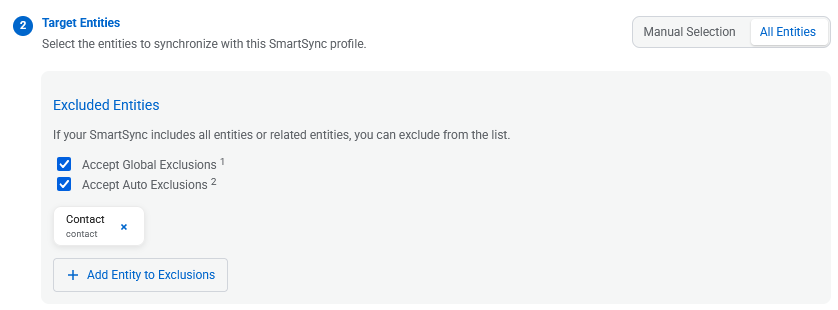
Choose All Entities and optionally define a blacklist (i.e., all except these).
-
-
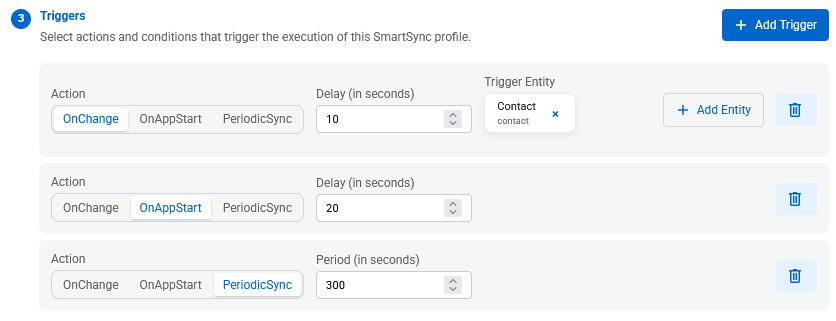
Optionally, add triggers. A SmartSync profile can execute when the app starts, when a record changes, or periodically. You can also initiate SmartSync from outside of the trigger, see Executing a SmartSync profile.
Managing excluded sync modules
Excluded sync modules specify which synchronization phases a SmartSync will skip. A regular sync runs through all phases below in order; a SmartSync runs the same pipeline but omits the phases listed in SyncFlags.
The table below shows every sync phase together with the flag that controls it. A dash (—) in the Skippable via column means the phase always runs; it is part of the sync backbone and cannot be omitted.
|
Phase |
Skippable via |
Notes |
|---|---|---|
|
— |
Authentication and security token. |
|
|
Remote conflict resolution |
|
Applies upload conflicts that were resolved on the Sync Dashboard. |
|
— |
Uploads pending local changes to the server. You can skip it by setting Sync action to download only. |
|
|
|
Checks for a new app project published from Woodford. |
|
|
Preparation |
|
Download permissions, Salesforce layouts, and similar. |
|
|
Processes the Delete plugin's deletion log (Dynamics) or RecycleBin (Salesforce). |
|
|
— |
Decides per entity whether full or incremental sync is more efficient. |
|
|
— |
The main work of sync: download records from the server and update the local database. You can skip it by setting Sync action to upload only. |
|
|
|
Records made accessible via explicit sharing rather than ownership. |
|
|
|
The cleanup phase removes local records that no longer match the sync filter. Skipping it can have a visible impact for the user. For example, if your sync filter normally restricts the user to records they own, the cleanup phase is what removes records previously visible but no longer matching — without cleanup, a user can suddenly see records belonging to others (such as other technicians' bookable resource bookings). Use |
|
|
|
Note bodies, email attachments, sales literature files. Entity images (icon-sized record photos) are a subset of attachments and have their own flag. |
|
|
|
SharePoint, OneDrive, Dropbox, Box. |
|
|
|
Email sync; runs after the main sync engine completes. |
|
|
— |
|
This composite flag does not correspond to a particular sync step, instead, it is a shorthand for "skip everything optional." It implies every skippable phase in the table above except |
Managing exclusion lists
In some scenarios, designing a blacklist of excluded entities is more effective than a whitelist. SmartSync profiles work with three exclusion lists:
-
Manually excluded entities, i.e., you select which entities to omit
-
Global exclusions
-
Auto exclusions
Global exclusions and auto exclusions are similar concepts: Resco tries to identify possible entities that can be safely skipped. We are omitting stable entities (e.g., systemuser, team, territory) or enum-like entities (simple schema, rarely changes, few records).
The difference is where this check occurs.
-
Global exclusion list is populated in Woodford by looking at the data model/metadata.
-
Auto exclusion list is populated in Resco Mobile CRM by looking at the actual data and sync history.
By excluding such entities from SmartSync, you can save a few seconds when it matters most. Standard sync cycles (not the smart ones) still include them, but in general, it is not necessary to poll the server for a new currency every 60 seconds.
Executing a SmartSync profile
-
Triggers included in the profile
-
StartSmartSync command on forms and views
-
JavaScript
Things to remember
Just like automatic synchronization, SmartSync cannot start if:
-
The mobile client is not configured to allow it
-
There are unresolved sync errors
-
The server requires authorization
-
There have been too many recent connection failures
-
The application is in a state that requires FullSync or AppUpdate.
-
Check also the auto sync blocking conditions.
SmartSync can be significantly faster than a regular synchronization run, but this comes with trade-offs:
-
Some entities may be fresher than others.
-
If cleanup is skipped, the user may continue to see records that should already be removed.
-
There is a small risk that an entity classified as stable has actually changed.
Potential sync conflicts when using upload only
-
When using a SmartSync profile that only uploads local changes, you can run into sync conflicts. (Essentially, last sync date is only updated during the download phase of sync. As a result, we may find records updated by earlier SmartSync runs as modified on the server and a conflict occurs.)
-
A quick solution is to use "Device Wins" conflict resolution strategy. If that's not an option for your use case, try switching to "upload and download" to avoid the problem.
Storage analyzer
A custom Storage analyzer report for SmartSync serves to...
Sync log
When inspecting synchronization in the log, you can identify SmartSync with a new line, immediately after the block about data/organization/user.
<SmartSync name='RefreshTasks'/>
Other than that, it is treated as a standard sync, except that some steps and entities (and the corresponding log entries) are excluded.
SmartSync.xml
The SmartSync configuration from Woodford is written to the SmartSync.xml file. Technical enthusiasts, such as senior support agents, can edit the file directly (Work with Resco app folder) to perform quick tests on their Windows devices.