
To track the location of field users reliably, Resco Mobile CRM on Android needs permission to access location in the background and must be excluded from battery optimization. This guide walks you through the six steps of the first-login setup. It is written for location tracking, but the same setup also applies to geofencing.
-
Allow location access
Keep “Precise” and tap “While using the app”.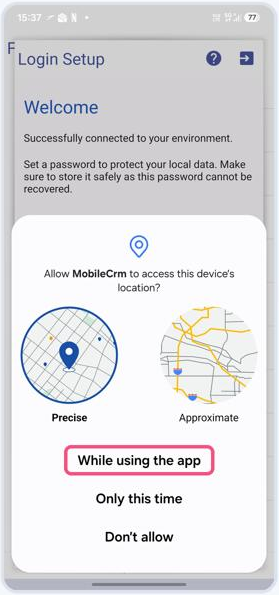
-
Enable background location
Tap “Change to Allow all the time”.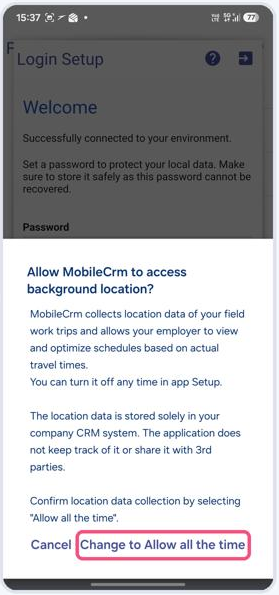
-
Open location settings
In Android settings, select “Allow all the time”.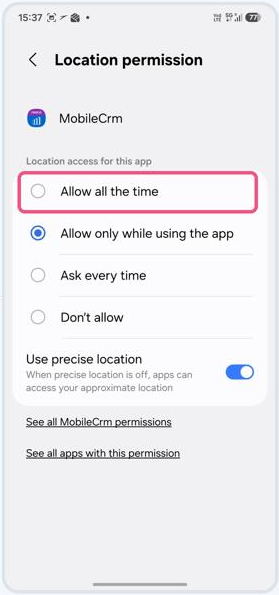
-
Confirm and go back
Check that “Allow all the time” is selected, then tap Back.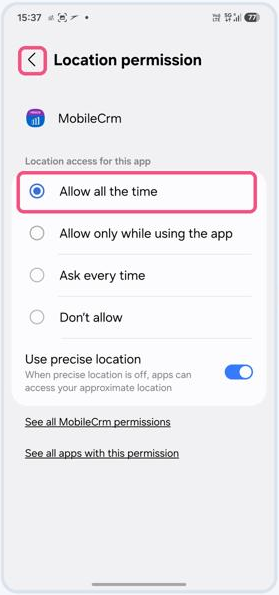
-
Battery optimization
Back in the app, tap “Ok” on the battery prompt.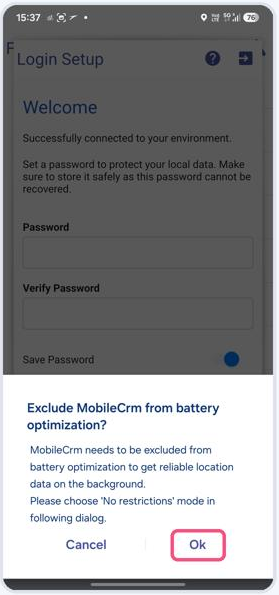
-
Set battery to Unrestricted
Select “Unrestricted”, then return to the app to finish login.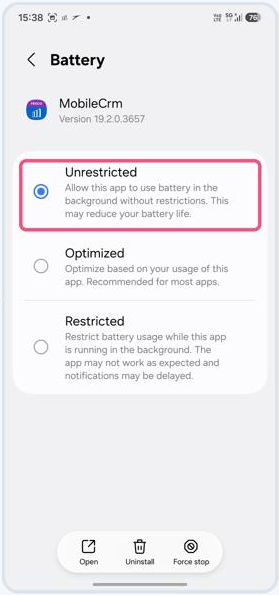
Tip: you can turn background location off any time in the app’s Setup.