
|
wiki-link |
|
|---|---|
|
academy-link |
Data synchronization is the process of establishing consistency among data from a source to a target data storage and vice versa and the continuous harmonization of the data over time.
In the case of Resco Sync Engine, consistency has to be ensured of the data stored on the CRM server and the data stored on a end user device using Resco Mobile CRM app.
Introduction
When you synchronize your app for the first time, you basically download to the device a subset of the server database. This subset refers to the time instant when it was downloaded. (Or synced last time – hence the name LastSync time. Strictly speaking there is no LastSync time for the database as a whole. Instead, each table has its own LastSync time.)
Once you have the data on the mobile device, you can start using it – view, search, but also create, edit or delete. Of course, the same data items may be changed on the server, too.
The purpose of the synchronization is to
-
Download server changes to the client
-
Upload client changes to the server
-
Resolve eventual conflicts
CRM servers have large databases with a lot of data. Users of the mobile app usually need only a small subset of entities, and they don't need the full set of fields for each record.
Types of synchronization
When talking about data synchronization, we sometimes need to differentiate between its various types.
Full vs incremental
-
Full synchronization downloads all server records that match the Sync Filter for each entity. This is used when you launch the mobile app for the first time, and occasionally afterwards.
-
Incremental synchronization uploads the client's local changes to the server and downloads server changes since the last sync.
Incremental sync is much faster than full sync because it only deals with what has changed. In a typical deployment, more than 99% of syncs are incremental. Full sync runs only when necessary:
-
Automatically, when you change the server URL or the user name
-
On user demand, by deleting data (Setup form > Advanced > Delete Data)
-
When forced by an administrator via the Device control tool
-
Optionally on every customization change, controlled by the Configuration parameter Full Sync on Schema Change (not recommended in general)
The difference is significant in cost terms: full sync downloads everything, scales linearly with server data volume, and may take many minutes for large data sets. Incremental sync scales with the volume of changes since the last sync, which is typically a small fraction of the total.
Why incremental sync needs a cleanup phase
The naive view of incremental sync is "download records changed since the last sync." This isn't quite enough.
Consider a sync filter that downloads only active accounts. If an account is deactivated on the server, it no longer matches the sync filter — but it still counts as "changed since the last sync." A naive implementation would either miss the deactivation (and leave a stale account on the device) or download the now-inactive account and store it (wrong, the filter excludes it).
For this reason, every incremental sync runs in two phases:
-
Download all changes (including changes that may not match the current sync filter)
-
Run cleanup — delete records that no longer match the sync filter
This is the safe algorithm. It always converges on the correct state, but at the cost of sometimes downloading records that will immediately be deleted. The different incremental sync strategies described below are all attempts to make this safer or cheaper for specific situations — at the cost of different risks.
For example, in the case above, sync 1 might play out like this:
-
Account A is downloaded to the client during the initial full sync.
-
Account A is deactivated on the server.
-
The next incremental sync downloads Account A (because it changed).
-
The cleanup phase deletes Account A from the client database (because it no longer matches the filter).
Partial full sync
Sometimes, the sync engine can decide to full sync only selected entities. This typically happens when a customization update changes the entity definition or when performance reasons dictate that it is better to execute entity full sync instead of inc sync.
Note: Partial full sync refers to running a full sync for a subset of entities during a normal sync cycle. This is different from SmartSync, which is a separately triggered partial sync (typically incremental) targeting a specific subset of entities.
During customization update, these are the possible reasons for partial full sync:
-
for new entities
-
for entities with new fields(If fields are disabled for an entity, full sync is not needed. The disabled column is simply removed from the local database.)
-
when the entity Sync Filter has changed.
These are other possible reasons for partial full sync:
-
The sync engine uses a module called SyncAnalyzer to answer the question of whether for a given entity it is better to perform inc sync or full sync.
-
You can also force full sync for a particular entity using Woodford: edit an app project, select an entity from the Project menu, and set Synchronization to Always Full Sync. (When to use Always Full Sync?)
When there are changes in the user’s security role on the server (for example, the user loses access to an entity), Resco Mobile CRM has no information about this change. Hence, it is the responsibility of the Woodford administrator to enforce full sync in these cases.
Foreground vs background
-
In foreground mode, the app displays progress dialog; users must wait until the synchronization finishes
-
In background mode, users can use the application freely during synchronization. When both the user and the synchronization process attempt to write to the database at the same time, users will be notified and they have to wait.
When a new customization is available (new app project published from Woodford), the synchronization must run in the foreground.
Manual vs automatic
-
Manual synchronization is initiated by the app user by tapping the Sync button, or it can be launched via JavaScript.
-
Automatic synchronization can be periodic or triggered by app start or data change.
-
SmartSync (introduced in release 19.1) is a configurable partial sync that targets a subset of entities or skips specific sync steps. It runs in the background and can be triggered manually, periodically, on a record change, or from JavaScript. Use it when you need a specific slice of data refreshed quickly without running a complete sync cycle.
Incremental sync strategies
Resco's incremental sync is not a single algorithm — it offers four strategies that trade off sync speed, completeness, and risk of stale data. The strategy can be selected per entity in the entity settings in Woodford. The default applies to most entities and is the safest choice; the others are optimizations for specific situations.
The four strategies carry different risks:
-
A — Moving time windows. Records that drift into the filter's scope without being modified may be missed by sync.
-
B — Missing unchanged related records. Related records that should be downloaded as part of a change are not, because they themselves weren't modified.
-
C — Unneeded downloads. Records are downloaded and then immediately removed by cleanup. Wasteful but not incorrect.
-
D — Complex queries. Performance risk on the server due to expensive FetchXML and security evaluation.
Standard incremental sync
The default strategy.
-
Download all records changed since the last sync, regardless of whether they match the sync filter
-
Run cleanup — delete records that don't match the filter
Suitable for most entities. Robust and complete, but may produce unneeded downloads (C) — especially in models where a sync filter rejects many of the changed records, or where filter conditions are dynamic.
It also carries risks A (moving time windows can drift records into scope) and B (related records not directly modified are missed).
Incremental sync with Sync Filter
An optimization: include the sync filter as part of the incremental fetch, so the server returns only records that both match the filter AND have changed since the last sync. Configured per entity in Woodford.
This strategy eliminates unneeded downloads (no C risk), but introduces a serious problem: it misses records that stop matching the filter since the last sync. A record that was active and is now inactive will not be downloaded, so the client retains the stale active version.
For this reason, the strategy is only safe for entities whose records are effectively immutable, or where records are edited only by the mobile user:
-
Feed items, chat posts
-
Email and phone call activities (in most setups)
Risks: A, B, D (the fetch is more complex on the server side).
See Sync Filter and incremental sync for the full technical treatment with worked examples.
Always Full Sync
Skip incremental sync entirely; run a full sync for this entity on every sync cycle.
Configured per entity in Woodford (entity setting "Synchronization" set to "Always Full Sync"). Use for small or medium entities where the filter is dynamic and incremental bookkeeping isn't worth the complexity.
This strategy is conceptually the simplest and removes a class of edge cases — no risk of missing records, no cleanup ambiguity. The cost is just the time and bandwidth to re-fetch the entity. For small entities, this is negligible.
Risks: D only — heavier per-sync payload, but no consistency risks.
Incremental Linked SyncFilter
An optimization for catching changes that standard incremental sync would miss because the change happened on a related record rather than the target record itself. Configured per entity in Woodford.
Standard incremental sync downloads records that have changed since the last sync. But sometimes a record should be downloaded because something related to it changed — for example, an account becomes active again, so its contacts should appear on the device, even though those contacts themselves weren't modified. Standard incremental sync misses this case.
Incremental Linked SyncFilter solves it by adding the sync filter's link conditions to the incremental fetch as outer links. The result is a fetch that downloads:
-
Records that changed themselves, and
-
Records linked (via the sync filter) to a related entity record that changed
The cost is increased download volume — and potentially heavy server load, since the fetch becomes more complex than a standard incremental query.
Risks: A, C (possibly unneeded downloads), D (heavier server load).
See Linked Sync Filters for worked examples.
Choosing a strategy
The choice depends on the entity's role in the data model, how dynamic the filter is, and how dynamic the data is.
|
Strategy |
Best for |
Risks |
|---|---|---|
|
Standard incremental sync (default) |
Most entities |
A, B, C |
|
Incremental with Sync Filter |
Immutable entities, or records edited only by the mobile user |
A, B, D |
|
Incremental Linked SyncFilter |
Ensuring related records are downloaded when changes happen on linked entities |
A, C, D |
|
Always Full Sync |
Small or medium entities with dynamic filters |
D |
For more concrete decision guidance:
-
Sync Filter and incremental sync — full technical treatment with worked examples and per-strategy trade-off analysis
-
Deep dive: Sync filters in Field Service — strategy choice in heavily-linked data models
For situations where chained filter optimizations aren't enough — typically Field Service-style data models where reverse-link filters span multiple entities — there are also patterns that work outside the four-strategy framework, such as Deep dive: Sync filters in Field Service. These are server-side patterns rather than client-side sync settings.
Note
How does SyncAnalyzer fit into this equation? This optional tool checks server data. Then, for each entity, it decides whether to continue with the selected incremental sync strategy or go with full sync instead.
First synchronization
The very first synchronization is a full synchronization with some additional steps. Client downloads the following:
-
Customization
-
Data model (empty database tables are created on the client)
-
Permissions
-
User interface screens
-
-
Entity records as specified by the customization (they are saved to the database)
The result is a kind of equilibrium:
-
Client has customization that was valid at the time of the last sync.
-
Client has a projection of server data (as defined by the customization) that was valid at the time of the last sync.
Subsequent synchronizations
This equilibrium changes after some time:
-
Client changes: User created or edited some data records; some new records were created automatically (for example audit)
-
Server changes: Someone modified records on the server.
-
Some records might have been changed by both client & server (= conflicts)
-
Woodford might have changed the customization.
The next synchronization (incremental) has the task of restoring the equilibrium:
-
Upload client changes
-
Identify conflicts (based on record modifiedon attribute)
-
Resolve conflicts if possible. See Conflict resolution for details.
-
Unresolved conflicts are shown in SyncErrors form; respective records are excluded from upload.
-
Client changes (except unresolved conflicts) are uploaded to the Server. Records that fail to upload are also shown in SyncErrors form. (Together with the error message.)
-
-
Check for the new customization and try to apply it.
-
New customization may change the data model. This is a non-trivial operation and it cannot be performed during a background synchronization (dangerous for user interface), or if there are not-uploaded changes - conflicts or errors (new customization could delete the changed columns).
-
In these cases the new customization is ignored and the user will be notified about that. (Next time foreground sync will be forced.)
-
If a new customization is available and can be applied => It will be applied.
-
-
Finally, download server changes
Result: A new equilibrium between the client and the server with these exceptions:
-
Sync Errors (conflicts, upload failures)
-
Possibly waiting customization that could not be applied. (background sync or unuploaded changes)
See Synchronization steps for a detailed technical description of the synchronization process.
Servers involved in synchronization
-
license
-
external users resolution
-
ApplicationVersionCheckService (responsible for update available notifications)
CRM data/customization:
-
Power Platform / Dynamics CRM
-
CRM4 (deprecated)
-
CRM5: Dynamics 2011/2015/365; Online / On premise
-
-
SharePoint
-
DropBox, Box, OneDrive
-
Azure cloud storage for attachments
Mail servers
Synchronization (Woodford menu item)
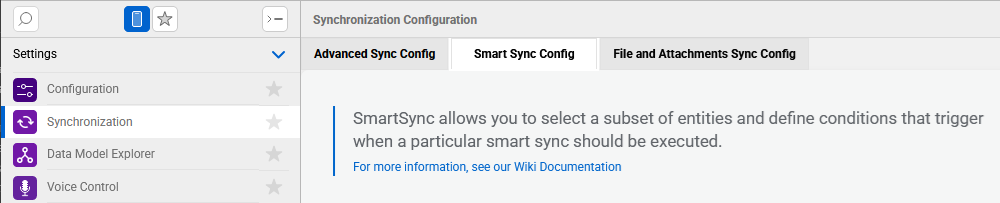
Settings > Synchronization is also one of the items available in the Project menu in Woodford. On this page, you can set up the following features:
-
SmartSync — define custom partial sync profiles that target specific entities, sync steps, or directions; configure triggers for when each profile runs
-
Advanced sync setup — finetune how entities are downloaded and uploaded during sync (number of parallel threads, order of entities, etc.)
-
Document filters — select filtration criteria and set up hard limits for downloading attachments and cloud documents to the device
See also