
mitmproxy is a free and open source interactive HTTPS proxy, available from the Microsoft Store. You can use it to trace the communication between the Resco mobile apps and the backend server, for example during synchronization. If you send us the captured communication along with a description of the problem, this can significantly speed up troubleshooting.
How mitmproxy can help
-
Identify server requests taking too much time
-
Identify requests/responses transmitting large amounts of data
-
Identify bottlenecks in the client-server communication
-
Identify repeating or duplicate requests
The resco_trace.py script is an optional add-on for mitmproxy. It simplifies the work with mitmproxy and offers additional features:
-
Scope capture to Resco hosts
-
Redact captured traffic, hiding credentials
-
Add Resco options and commands to mitmproxy
-
Produce a ready-made summary — the workflow writes a one-page report (time per entity, slowest requests, errors, duplicates) so you don't have to read every request by hand
Install mitmproxy
-
Start Microsoft Store and search for "mitmproxy".
-
Install it on your computer.
Enable the proxy server
Before every use of mitmproxy, you have to enable the proxy server.
-
Press
Win + Rand enterms-settings:network-proxy(or go Start > Settings > Network & Internet). -
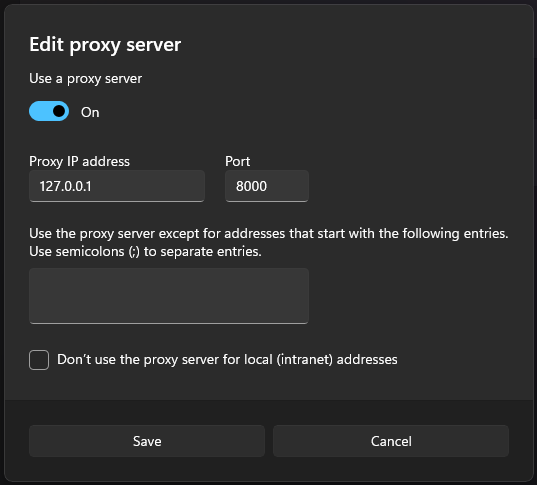
In the Manual proxy setup block, click Set up.
-
Enable the proxy server and set it to
127.0.0.1, port8080, then save all changes.
Download and install the certificate (one-time action)
-
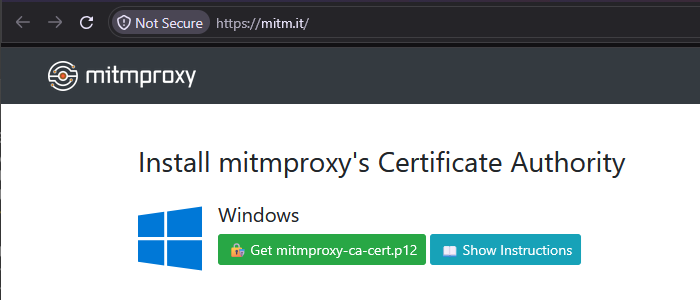
Using a browser, go to mitm.it.
-
Get the Windows certificate.
-
Double-click the downloaded P12 file to start the import wizard.
-
Select a certificate store location. Either is OK for our use case. ("Local Machine" requires admin access.)
-
Leave Password blank and click Next.
-
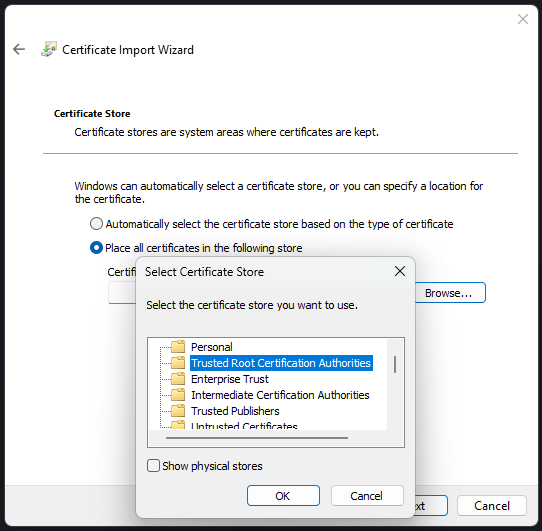
Select Place all certificates in the following store, then click Browse, and select "Trusted Root Certification Authorities".
-
Finish the import wizard.
Set up mitmproxy
-
Download resco_trace.py. This add-on helps you capture the right traffic.
-
From the Start menu, launch "mitmweb (web ui)". mitmproxy web UI opens in your default browser, on the page http://127.0.0.1:8081/
-
On the Options tab, enable Display Command Bar.
-
Click Edit Options, scroll down to "scripts" and enter the full path to
resco_trace.py.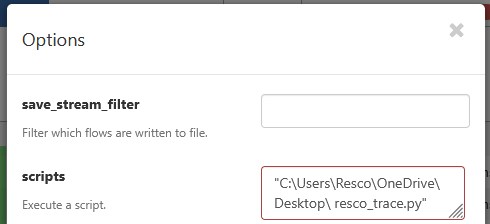
-
When you reopen Edit Options, note the new "_resco" options on top.
-
Enter the command
resco.statusto verify that Resco extras are enabled.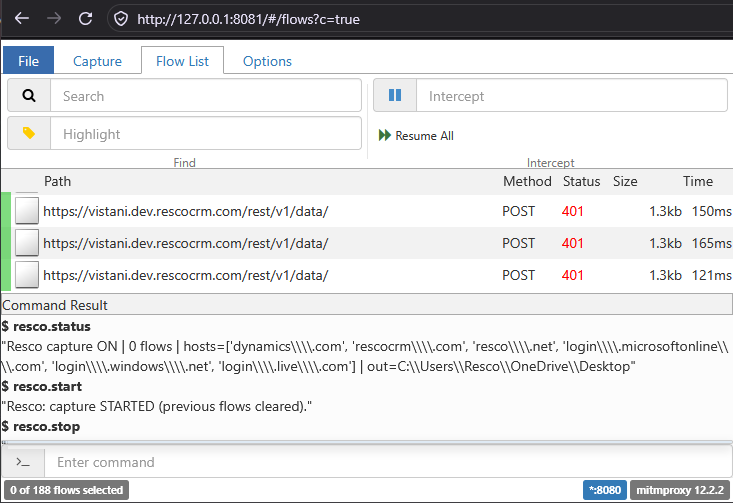
Capture traffic
-
With mitm set up, run the
resco.startcommand. -
Do the actions that you want to capture in Resco Mobile CRM.
-
Return to mitm and run
resco.stop.
Stop proxy
-
Press
Win + Rand enterms-settings:network-proxy(or go Start > Settings > Network & Internet). -
In the Manual proxy setup block, click Set up.
-
Disable the proxy server, then save all changes.
Analyze captured data
The resco.stop command saves two files to the folder where resco_trace.py is located. (By default, you can override formats and output folder in the options.)
-
sync-summary.html- quick analysis of the captured data, focused mostly on synchronization -
resco-capture.har- all traffic in one big file. Use web browser > developer tools (F12) > Network tab > drag HAR here to browse the traffic.