
Live preview mode lets app makers design better-looking app projects faster. As soon as you save the project in Woodford, user interface changes become immediately visible in a linked Resco Mobile CRM instance. The traditional, lengthy procedure of publishing the entire app project and then downloading it to the mobile device during synchronization can be avoided. Only the modified files are sent to the app, saving time and making the design process much more effective.
Prerequisites/supported UI components
The following UI components are available for live preview:
-
Forms (19.0 or later; both Woodford and Resco Mobile CRM must be updated)
-
Views (19.0 or later)
This feature is experimental and has limited automatic refresh support.
How to start from Woodford
-
Log in to your organization and start Woodford.
-
Edit an app project.
-
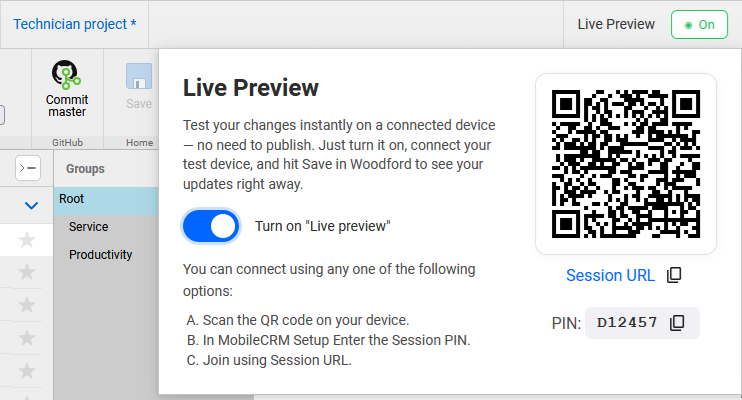
Click Live Preview next to your user name and enable the feature.
-
You can now connect to this project using one of the following options:
-
Scan the QR code on your device.
-
Copy the live preview session URL to the clipboard.
-
Copy the live preview session PIN code to the clipboard.
-
How to join from Resco Mobile CRM
-
Start Resco Mobile CRM.
-
Synchronize with the app project you are about to modify.
-
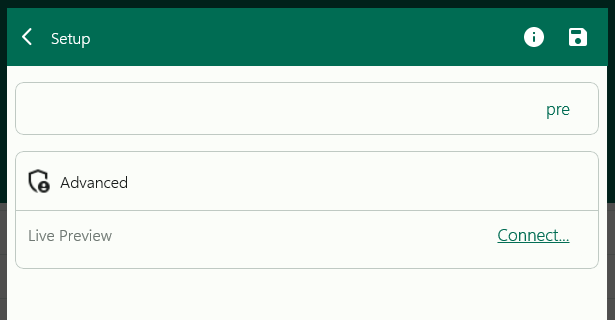
Go to the Setup/Settings page and search for "live preview".
-
Scan the QR code or enter the PIN code, then tap Connect.
Alternatively, you can open the session URL in a web browser; this launches Resco Mobile CRM and initiates the live preview mode.
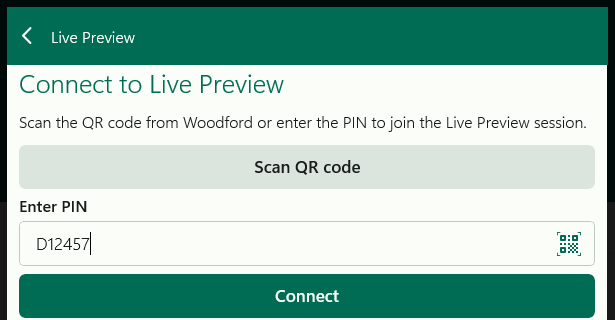

If the connection is successful, the "LIVE" indicator appears in the app header. Tap it to disconnect your live preview session.
Multiple devices can connect to a single preview session. For example, you can test in parallel on various platforms or screen sizes (phone/tablet). Or, if someone else requested the UI change, you can send them the session URL and receive immediate feedback.
Live preview details
Live preview creates a real-time bridge between Woodford and the Resco Mobile CRM app.
-
The app polls for changes in the supported UI components (every second) and applies them automatically.
-
If the affected view/form is currently open, it is reloaded. Automatic reloads are supported for standard forms and lists. Some components require manual navigation, for example, modal forms and certain theme elements (e.g., standalone list captions).
When joining the live preview, the app creates a temporary folder for storing modified components.
-
If you restart the app, you can continue using live preview or delete the folder.
-
Saving configuration in Woodford (Forms, Views, Charts, Styles, Themes) stores the published view config file into a dedicated table.
-
If you disconnect from live preview and want to see the published state of the app, you have to perform a sync.