
This article describes the options for adding business logic to questionnaire templates.
A well-built questionnaire doesn't just collect answers; it guides the person filling it out. Business logic lets you hide questions that don't apply, fill in values you already know, validate answers as they're entered, and react when something changes. For the questionnaire designer, that means fewer "if this, then that" instructions to write into question labels. For the inspector in the field, it means a shorter, smarter form that adapts to their answers instead of asking everything every time.
Questionnaire designers have several complementary tools:
-
Smart question properties – no-code logic attached directly to a question or group. Configured directly in the Designer pane of the Questionnaire Designer.
-
Rules – a no-code scripting language for events such as On Load, On Change, or On Save. Most rule concepts apply equally to first- and second-generation questionnaires.
-
Commands – actions that the user can invoke when filling out a questionnaire.
-
JavaScript – for advanced scenarios. The library you use depends on the questionnaire player: the Resco JavaScript Bridge for first-generation questionnaires, or the new qp-bridge for the second generation.
Smart question properties
Smart question properties allow you to control whether a question is visible, enabled, or required – and similar behaviors for groups – without writing rules. They are configured directly on the question or group in the Questionnaire Designer. See Smart question properties for the full procedure.
Under the hood, smart properties are compiled into the same rule script as On Change and On Load rules. The execution order is described in Interaction with smart rules below.
Rules
Rules describe sequences of steps that are executed when a user is filling out a questionnaire. They allow you to further customize the questionnaire form’s design and usage: hide or disable form fields, assign values to them, display messages, run additional logic, and so on.
To create or edit a rule, open a questionnaire template and click the corresponding event button in the main toolbar – this opens the Rules editor. The same scripting language and editor are used for Form rules, View rules, and other parts of the Resco platform; see Business logic for the broader picture.
Rule events
The following events are available in the Questionnaire Designer:
-
On Create – Executed before a questionnaire instance is created. Useful for populating variables used by the reuse fetch. Requires rules version 3 or later and Resco mobile apps version 15.0 or later.
-
On Load – Executed when the questionnaire form is displayed.
-
On Change – Executed whenever the user changes the value of a question. Also executed when the questionnaire is first displayed.
-
On Save – Executed when the user attempts to save or complete a questionnaire. The exact moment depends on the questionnaire's Validate On property.
-
On Repeat – Executed when a new instance of a repeatable group is created.
-
On Delete – Executed when an instance of a repeatable group is deleted.
-
On Can Execute – Used together with commands to configure when a command is available.
-
On Execute – Used together with commands to configure what happens when a command is executed.
See Questionnaire Designer examples for sample rules.
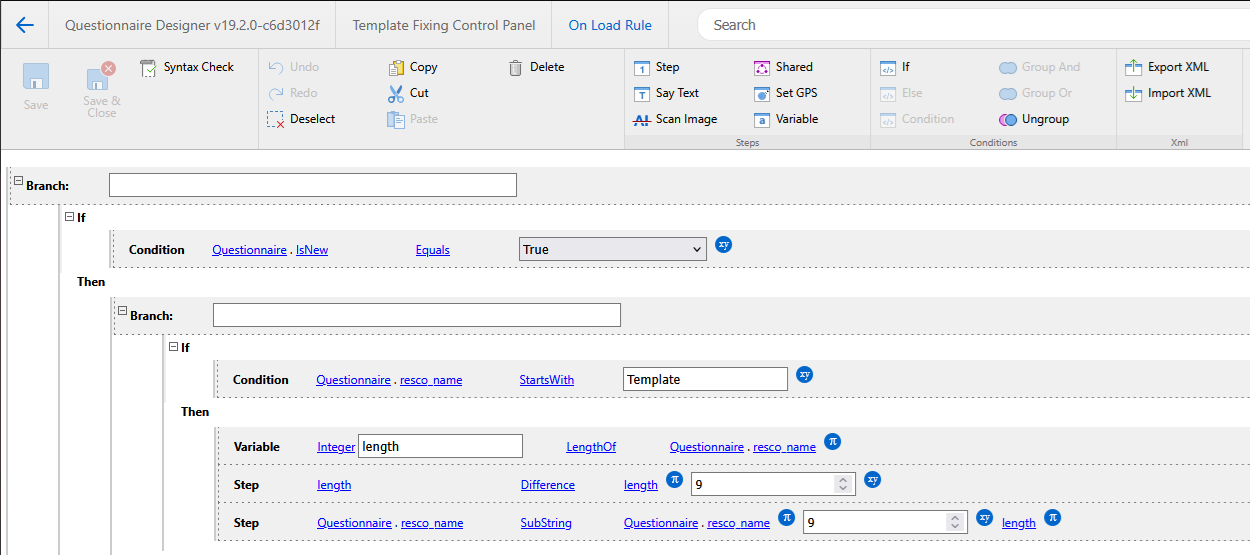
Rules editor
In the rules editor, add rules and conditions using the toolbar to create your rule script.
Steps group
-
Step – Step is a specific action that can be defined within the condition branch or separately in the rule. Once it is a part of the condition branch, the step begins after its preceding condition is met. To move a step in the rule editor use arrows in the editing line. To delete it, use the delete button in the same line.
-
Say text – When the rule condition is fulfilled, a message window with chosen text appears on the user’s screen. This button serves as a means of setting the message text.
-
Scan Image – Allows you to initiate barcode scanning or image recognition, resulting barcode or recognized image is saved to a string.
-
Variable – define a variable that is added into the Property selector of the rule. This variable will be only used for the specified rule. Remember that you can only use this variable after the step where it was defined. To enter a variable into the workflow after defining it, just click elsewhere the variable editor. To delete it, click on the variable and choose the delete option in the editing line.
-
Shared variable – add a variable that covers the entire questionnaire form
Conditions group
-
If – The first condition contains the label “If” and the condition string. The conditional branch consists of the condition and steps that are executed only when the condition is valid. Steps and variables are displayed in the “Then” or “Begin” section. All parts of the rule can be modified or re-ordered using the up and down arrows at the end of the editing line.
-
Else – Using this option, otherwise branch of the condition will be added to the actual (selected) condition. The "Otherwise" part of the rule condition prevents the user from experiencing unexpected, incorrect behavior.
-
Condition – adds another condition to the same if
-
Group And / Group Or – select two or more conditions and choose whether all need to be met or only one of them
-
Ungroup – Selected condition consisting of several conditions is divided into separate conditions
Rules version
For each questionnaire (gen 1 only), you can choose the version of the rules engine on the Rules tab in Options. This affects the execution of On Change rules and which events are available.
-
Version 1 – When any question is changed, all On Change rules are executed (those defined on the root and on every group).
-
Version 2 – Root On Change rules are executed every time. Group On Change rules are executed only if the changed question belongs to the group or the rule depends on it. (A rule depends on a question when it uses that question and the question is not listed as a context question of the rule.)
-
Version 3 – First version that supports On Create rules.
-
Latest – The questionnaire always uses the newest available version.
In general, leave the value at Latest. Older versions are provided for backward compatibility.
Resco mobile apps older than release 13.1 may experience instability with rules version 2.
Execution order
Several events can fire in sequence depending on what the user does. The order matters when you have rules in multiple locations (root level and group level) or when you combine rules with smart properties.
If you use both rules and JavaScript, the rules are executed first.
When a questionnaire is loaded
-
For every question, On Change rules are executed.
-
The IsLoaded property equals false.
-
The ChangedItem property equals the name of the question.
-
-
Then, root-level and group-level On Load rules are executed once.
-
IsLoaded is set to true.
-
With rules version 1, if your questionnaire has N questions and M groups, the On Change script is executed N×(M+1) times during loading. To keep loading fast, check the IsLoaded property at the top of On Change rules and skip work that only makes sense after the questionnaire is fully loaded.
When a question is changed
-
On Change rules are executed as described above.
-
ChangedItem contains the name of the changed question.
-
If both the root level and groups have On Change rules, the root script runs first.
When a questionnaire is saved or completed
-
All On Save rules are executed.
The exact moment depends on the questionnaire's Validate On property (set when saving or only when completing).
When a repeatable group is repeated
When a new instance of a repeatable group is created:
-
For every question in the new instance, On Change is executed (IsLoaded is set to false).
-
The group's On Load rule is executed.
-
The group's On Repeat rule is executed.
When a repeatable group is deleted
-
For every question in the deleted instance, On Change is executed.
-
The group's On Delete rule is executed.
Interaction with smart rules
Smart question properties are a simplified UI for building rules. Under the hood, they generate classic rule scripts that are merged with your hand-written rules at execution time.
-
When a questionnaire loads and scripts are initialized, a question's smart rules are appended just before the relevant On Change rule. For a question inside a group, that's the group's On Change; for a top-level question, it's the root On Change. Smart rules defined on a group are always appended to the root On Change.
-
The whole smart-rule section of a group or root On Change is automatically wrapped in
IsLoaded == true. This avoids executing the same smart rules many times during the load phase – see When a questionnaire is loaded. -
Smart rules are also appended before On Load rules and execute once when the questionnaire loads.
The smart-value rule that sets style and score is further wrapped in a ChangedItem == questionname condition, because only that question's value is relevant to the condition.
To summarize, the effective execution order is:
-
Smart rules of the questionnaire
-
On Change rules of the questionnaire
-
Smart rules of the first group
-
On Change rules of the first group
-
Smart rules of the second group
-
On Change rules of the second group
-
…and so on
Scoring in rules
When questionnaire scoring is enabled, rules can react to changes in the score or result. If the questionnaire's score or result changes, the root On Change rule is executed with ChangedItem set to Score or Result respectively.
Working with repeatable groups in rules
Use the QuestionGroups variable to address a particular instance of a repeatable group, or to operate on all instances at once. For examples, see:
-
Expand / collapse all instances of a repeatable group
-
Check all instances of a repeatable group when saving
Commands
Commands are actions that the user can invoke when filling out a questionnaire – for example, Save and close, Complete with a report, or a custom command of your own. They work similarly to Form commands on entity forms.
To configure commands, edit a questionnaire template and click Commands in the main toolbar. Move commands from Available Commands to Selected Commands, and use Properties to configure any options for the selected command. Click Save & Close when done.
Available commands
-
Cancel the questionnaire
-
Clear answers (*)
-
Complete and close
-
Complete, close, and open new (*)
-
Complete with a report
-
Run mobile report
-
View mobile report
-
Save
-
Save and close
-
Save, close, and open new (*)
Commands marked with an asterisk (*) are not available for Gen 2 questionnaires.
You can also define custom commands. Use On Can Execute to control when a custom command is available, and On Execute to define what it does. Alternatively, you can implement the command's behavior in JavaScript attached to the questionnaire form.
Configure Run Report command
The Run Report command has additional options – for example, you can control which output formats (PDF, Word, etc.) are available. See Configure Run Report command for the full list.
See also Buttons. Buttons share much of the action model with commands, but appear inline in the questionnaire body rather than in a command bar.
JavaScript
For scenarios that go beyond what rules can express, you can attach JavaScript to a questionnaire template. The library you use depends on which questionnaire player will display the template.
Gen 1: Resco JavaScript Bridge
First-generation questionnaires use the Resco JavaScript Bridge (JSBridge.js) – the same library used for forms, views, and other components in Resco Mobile CRM.
To attach a script to a questionnaire:
-
Place the script in the Offline HTML | Resco JavaScript Bridge section of the Woodford app project.
-
Edit the questionnaire template, open Options, and on the Rules tab, set Script Path to the path of your script.
You can also call JavaScript directly from a rule step; see Execute JavaScript from rules.
Gen 2: qp-bridge
The second generation uses a new JavaScript library – @resconet/qp-bridge – that can manipulate the player and fetch data from the backend. Because gen 2 is no longer tied to Woodford or Resco Mobile CRM, qp-bridge is designed to run in any host environment (Resco Mobile CRM, Power Apps, Power Pages, and so on).
High-level workflow:
-
Install Node.js.
-
Run
npm create @resconet/qp-script. The wizard guides you through creating a new TypeScript project. -
Write your code.
-
Build the project with
npm run build. -
In the Questionnaire Designer, edit the questionnaire, open Options, and on the Rules tab click Upload to attach the build output bundle directly to the template.
-
Save all changes.
A few popular functions:
-
onAnswerChange(...) – Subscribes to answer changes; the listener is called whenever an answer in the questionnaire changes.
-
getQuestion(...) – Retrieves a question by name.
-
setAnswer(...) – Sets the answer for a specific question.
-
setQuestion(...) – Updates a question.
The full reference is on the qp-bridge npm page.
Inside Resco Mobile CRM, you can still use the traditional Resco JavaScript Bridge for data manipulation alongside gen 2 questionnaires. However, JSBridge cannot interact with the new questionnaire user interface – use qp-bridge for that.
See also
-
Business logic – overview of business logic across the Resco platform
-
Rules editor – reference for the rules scripting language
- Questionnaire Designer
-
Questionnaire Designer examples – sample rules and configurations
- Modernized Questionnaire Player