Warning
Work in progress! We are in the process of updating the information on this page. Subject to change.
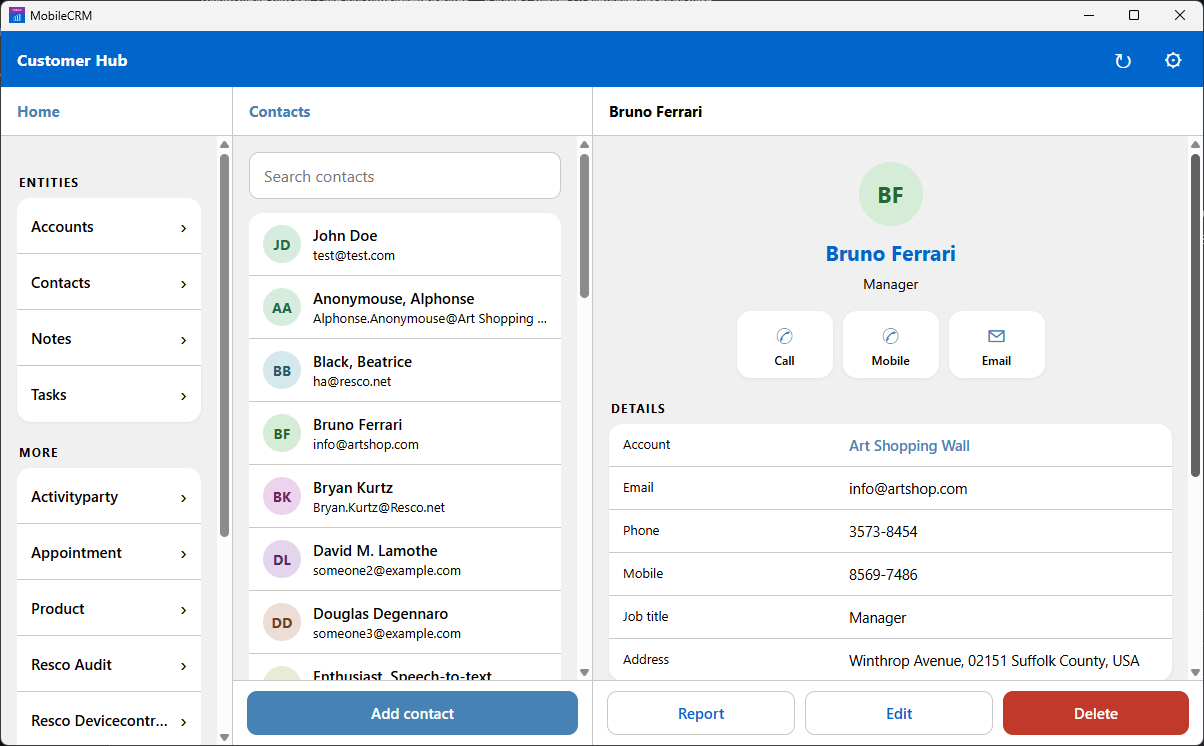
App projects developed for the Essential license grant secure offline access to your CRM at a reduced cost. Build your own UI on top of Resco chassis.
What is the Essential license?
Essential is Resco's entry-level Mobile Platform license: the Resco Mobile CRM app serves as a vehicle with best-in-class sync, full-featured offline, and proven security. The main difference to standard projects is that standard Resco user interface elements (such as forms, views, or the home screen) are not available. Customers build their own interface using JavaScript + JSBridge, optionally with assistance from the Resco MCP server.
The license was introduced in June 2026 as a pre-release of Resco release 19.2.
What backends are supported?
You can use the Essential license with all supported backends: Microsoft Power Platform (Dataverse, Dynamics), Salesforce, and Resco Cloud. However, Resco MCP server can connect to your Dataverse organization and read its metadata, making it particularly strong for developing for this backend.
Am I eligible for technical support?
The Essential license includes basic technical support for deployment, connectivity, configuration, project setup, and guidance on using the platform and MCP-based tooling. It does not include debugging, repairing, reviewing, or maintaining custom JavaScript code, whether written manually or generated by AI. For custom application logic, users should rely on provided documentation, MCP-enabled LLM guidance, best practices, and their own development resources.
Supported
-
Deployment questions, availability, and basic deployment troubleshooting
-
Connectivity issues, connection errors, basic log interpretation
-
Project setup: creating projects, configuring roles, sync filters, permissions, data model usage, apps; ensuring the right group gets the right project
-
App configurator / Woodford basics: where to save generated files, how to connect the generated HTML output, whether the JSBridge file is needed, handling a simple Vibe-generated project
-
High-level consultation on what is or isn't functionally possible
NOT supported
-
Debugging, repairing, or maintaining custom code — manual JavaScript, AI-generated ("vibed") code, large codebases, complex application logic
-
Reading large generated codebases or fixing generated JavaScript
-
Responsibility for whether the customer's/partner's generated application works as intended
How to get started with my first Essential project?
-
Start Resco's App Configurator (Woodford).
-
Create a new project. When selecting a project template from the gallery, choose "Resco Essential".
-
Set up your local data model, just like for a standard Resco app project.
-
However, you don't set up home screen, forms, views, or any other standard Resco user interface components. Instead, you must upload your custom HTML/JavaScript files, including your custom-built UI and business logic.
-
Publish the app project as usual, then sync your Resco Mobile CRM with the organization.
A brand-new Essential project contains only a simple script that adds the Synchronize and Settings buttons. The project menu is also greatly reduced.
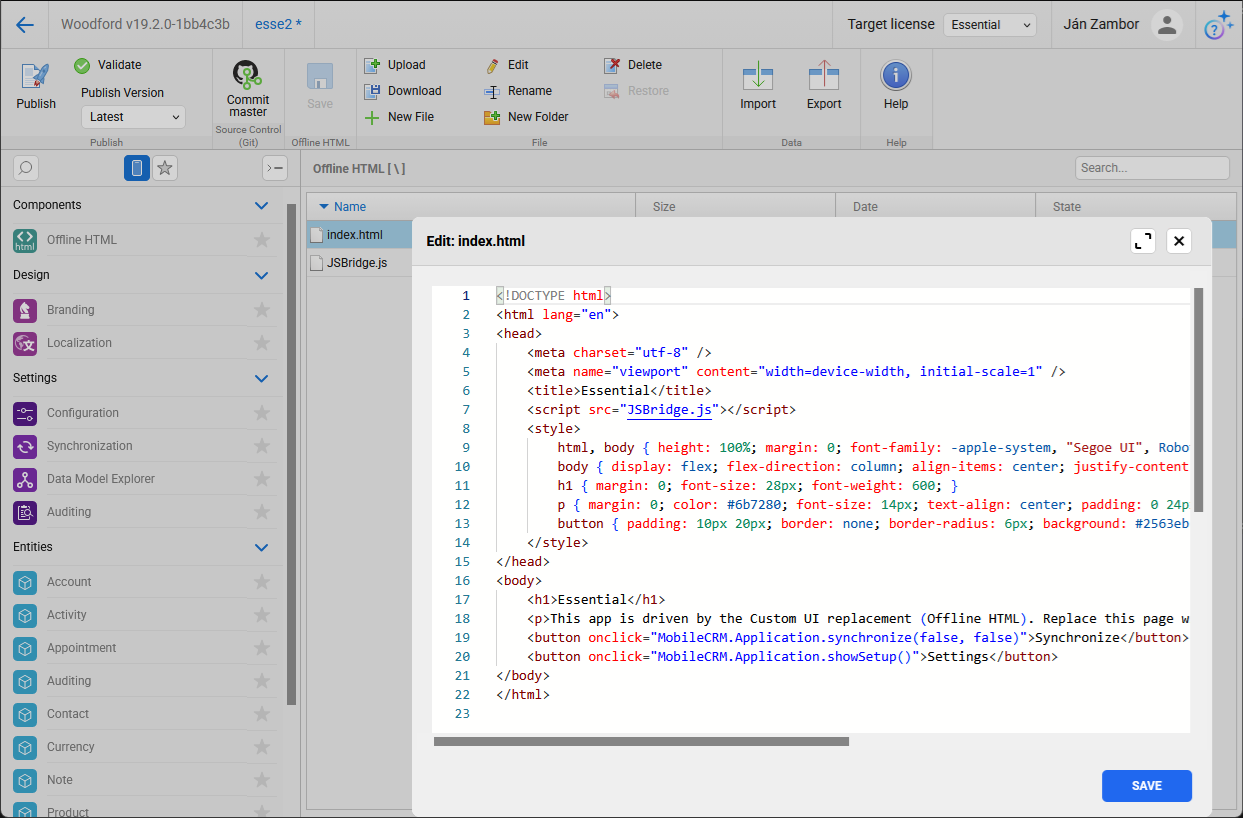
You can also convert an existing project into an Essential project. Change the target license to Essential. Converting drops the standard UI components (home screen, forms, views) and any other features not included in Essential.
Build with Resco MCP server
Getting an AI assistant to build a production-grade business app is usually harder than the demos suggest. The model has to reason about authentication, secure data transport, offline storage, and conflict resolution — plumbing that is easy to get subtly wrong and expensive to debug. With an Essential project, none of that is your problem. You build on the Resco chassis: authorization, encrypted communication with your backend, and local storage are already handled by the Resco Mobile CRM app. What's left for you — and for any AI helping you — is the part that actually differentiates your app: the user interface and business logic on top.
That's also where the Resco MCP server earns its place. When an LLM writes code against an unfamiliar CRM, most of its mistakes come from guessing — inventing entity names, misremembering field types, assuming relationships that don't exist. The MCP server removes the guesswork by giving the model direct access to your organization's actual metadata: your entities, fields, relationships, and picklists, exactly as they're defined in your environment. Instead of hallucinating a schema, the assistant reads yours — so the UI and logic it generates line up with your real data model from the first draft.
Here are some tips that may speed up your development greatly:
-
Register at the Resco MCP server with your organization. Direct metadata access saves time.
-
Install Resco Mobile CRM on your PC and synchronize with the organization at least once. Your app project or customization is saved to your computer.
-
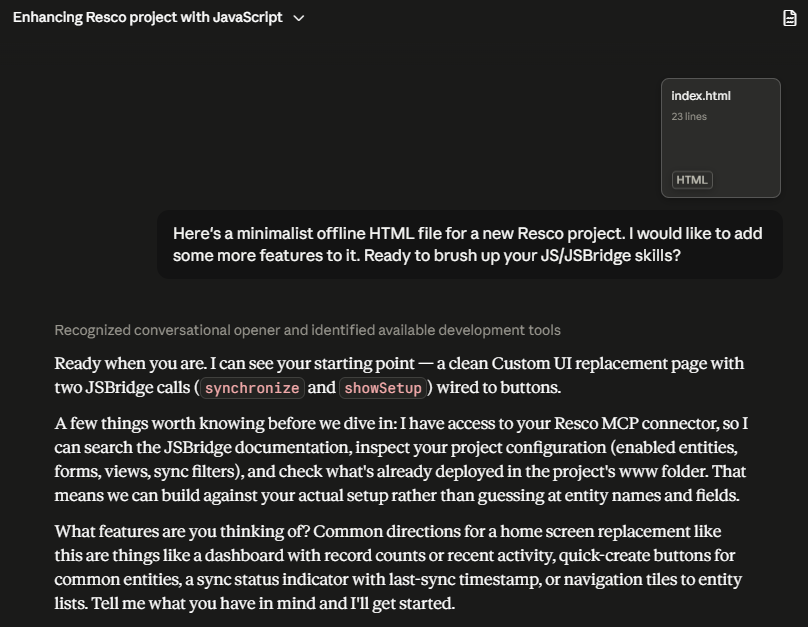
One simple way to start is to paste the blank index.html to your favorite LLM tool. Use natural language to describe what you need.
-
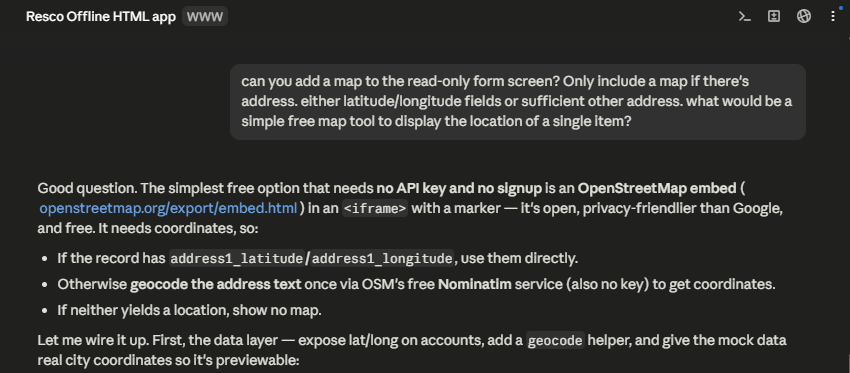
Read how to effectively Work with Resco app folder. The WWW folder contains the offline HTML files you must edit to create your app's user interface. By editing the files directly in the WWW folder, you save a lot of time by skipping uploading changes to the App Configurator, publishing the project, syncing your app, and verifying the changes.
-
Allow your LLM to edit the WWW folder to do the heavy lifting for you.
-
Once you are happy, remember to upload the local changes back to the project so that they are not lost.